Use this guide for the ClearTouch ZenStick, also called the Zen Stick or RocketSignage stick, used for Rocket Signage on a connected display. This setup uses a screen display code, not a touchscreen site ID. Have the included HDMI cable, USB power cable, and remote ready. Create or open your Rocket Signage screen in Customer Portal to obtain its display code. Your school IT team manages network credentials.

1

Connect your Zen Stick to your desired display with the included HDMI cable and USB Power cable.

  • To navigate the device, Zen Stick comes with a remote, but you can also connect a wireless Keyboard/mouse via USB dongle into the USB port on the end of the stick. (A keyboard will make typing your WiFi credentials easier later on) If using the remote, be sure to connect the IR extender cable to the Zen Stick, as well.
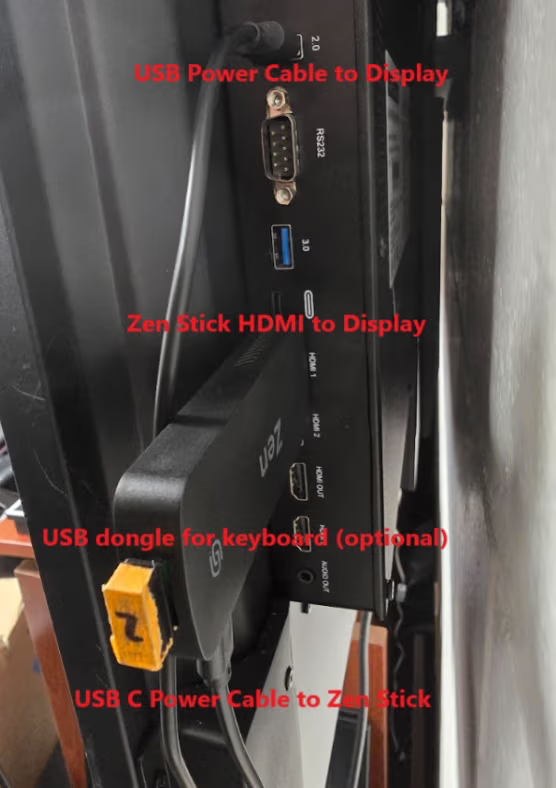
ZenStick connected to a display with HDMI, USB power, and an optional keyboard dongle

2

Zen Stick will power on and boot to the homescreen.
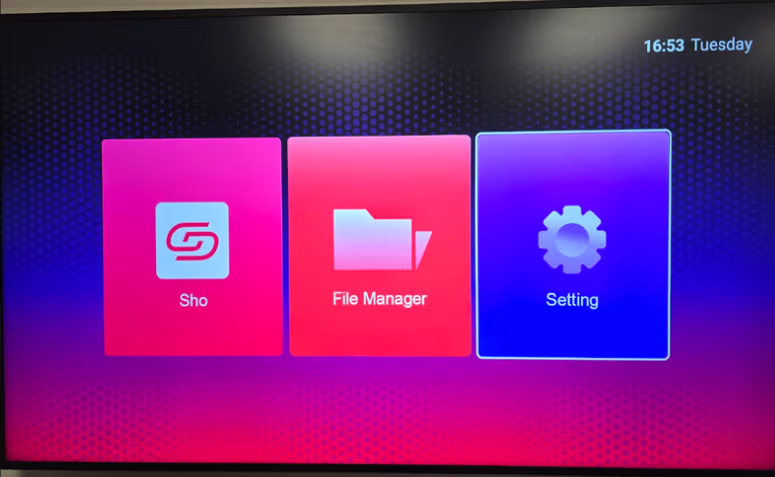
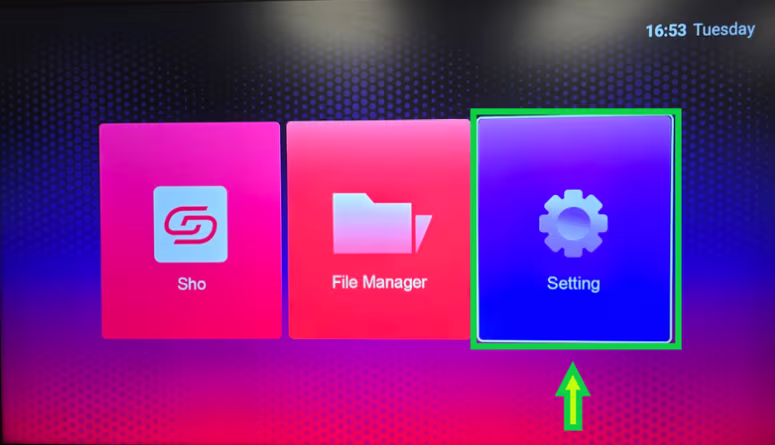
ZenStick home screen with Sho, File Manager, and Setting tiles

3

Click on “Setting”

Setting tile highlighted on the ZenStick home screen

4

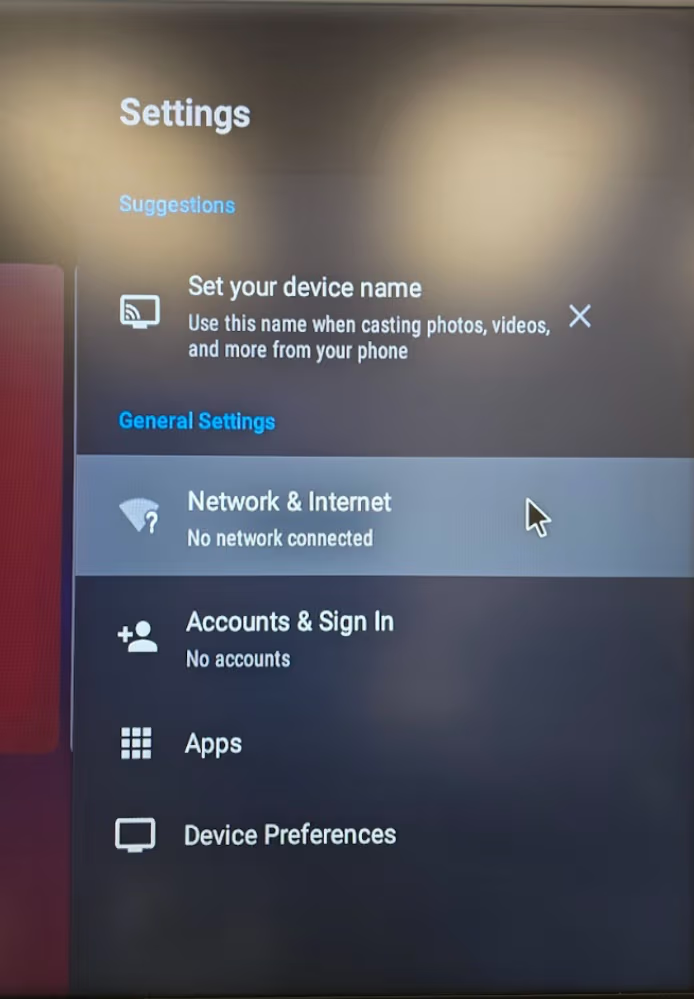
Network and Internet highlighted in ZenStick settings

5

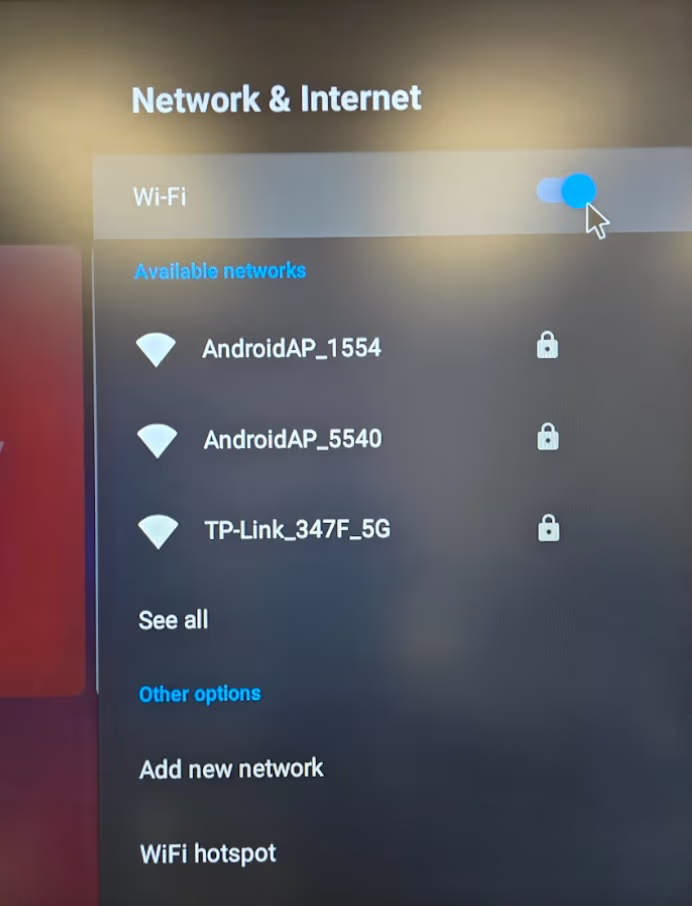
Click on WiFi button.

ZenStick Wi-Fi toggle enabled in Network and Internet settings

6

Click on your network to select it (Click “See All” if you do not see it listed.)
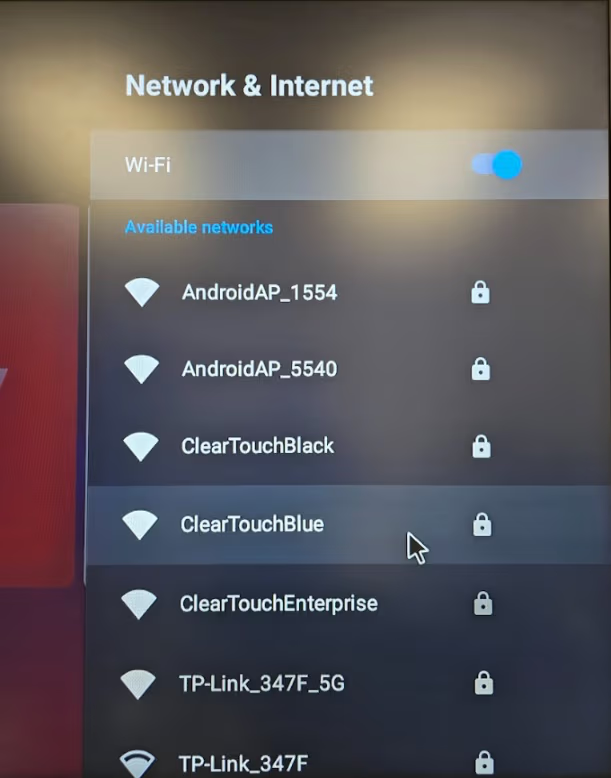
ZenStick list of available Wi-Fi networks

7

Enter your Network Credentials, click “Enter” when done.
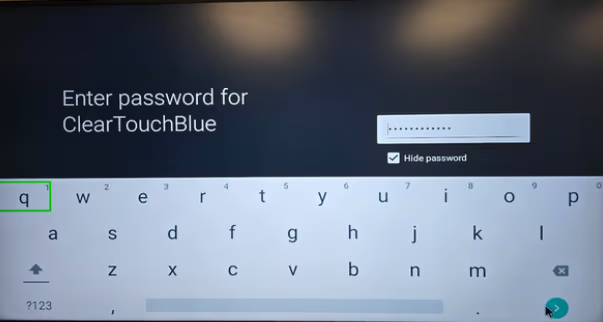
ZenStick on-screen keyboard with Hide password selected and a masked password field

8

Back out of settings (“Back” on the remote, Right Click with a mouse).

9
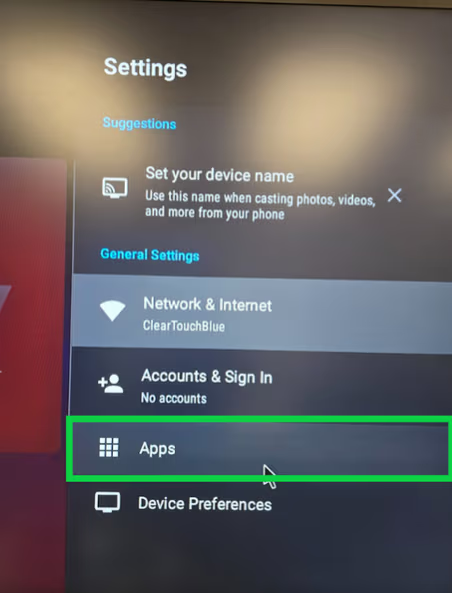
Apps highlighted in ZenStick settings

10

11

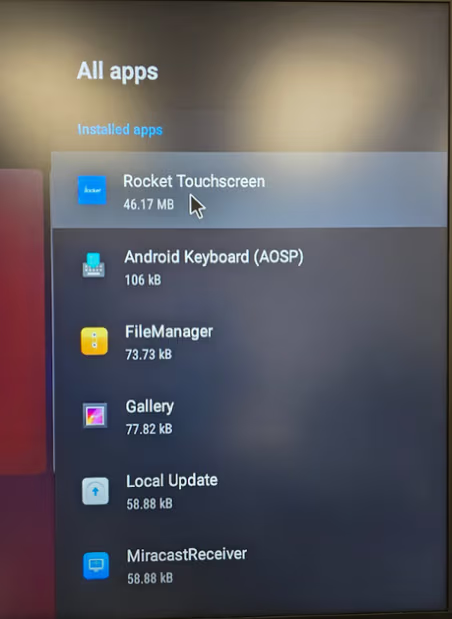
Rocket Touchscreen in the ZenStick installed apps list

12

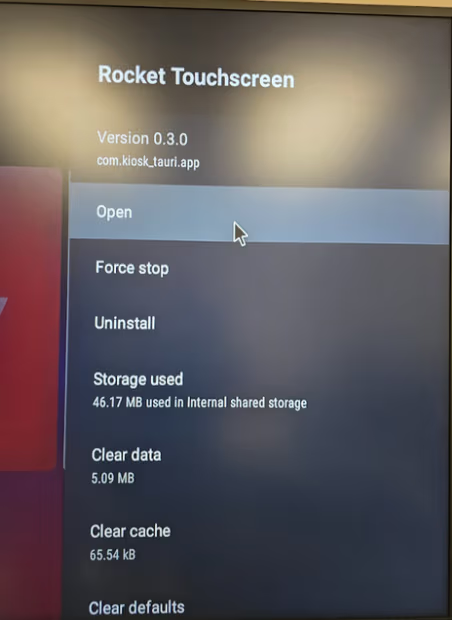
Open highlighted on the ZenStick Rocket Touchscreen app details page

13

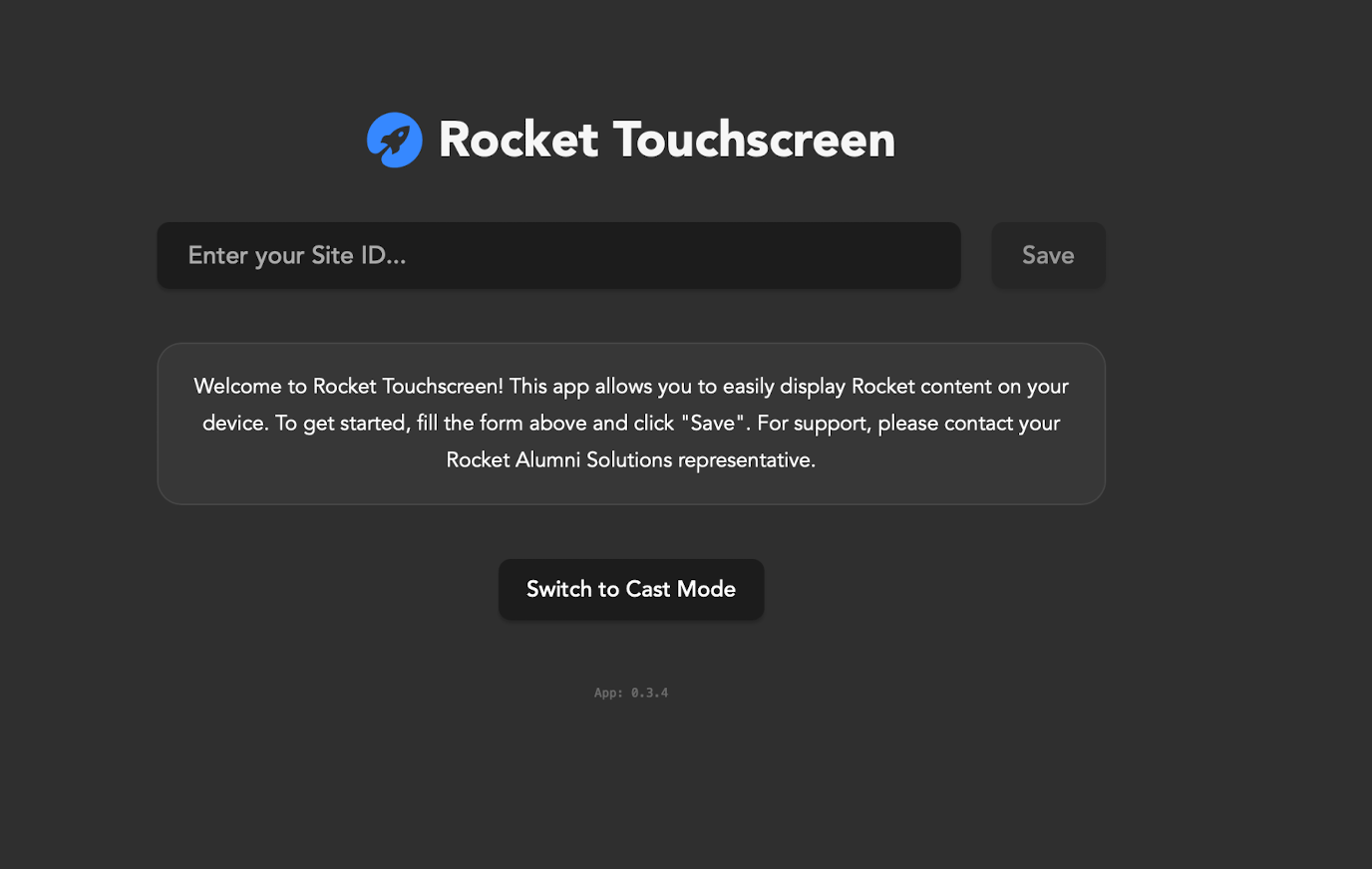
Switch to Cast Mode

Rocket Touchscreen app with an empty site ID field and Switch to Cast Mode button

14

Enter the Screen Display Code. To find it, go to Customer Portal → Rocket Signage, select the screen you want to display on this TV, and copy its display code.