

1
Before you begin
Note: While you can navigate the RocketBox with the provided remote (AAA batteries required), it is recommended to connect a wireless keyboard/mouse combo for easier navigation and typing of WiFi credentials. The RocketBox has three different USB Ports to choose from to connect a wireless dongle.
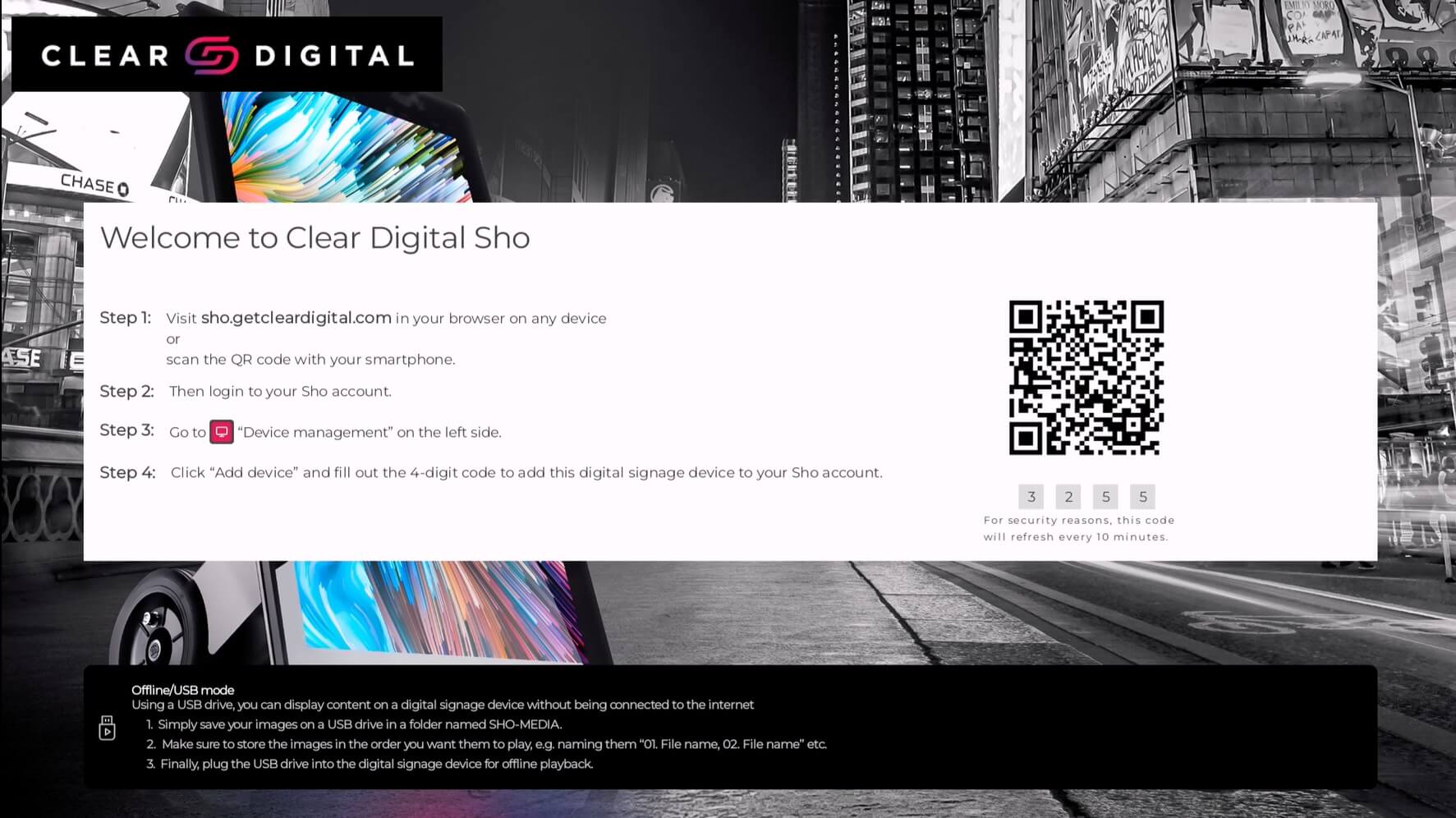
On boot up, the RocketBox’s native Sho CMS app will launch automatically:
2
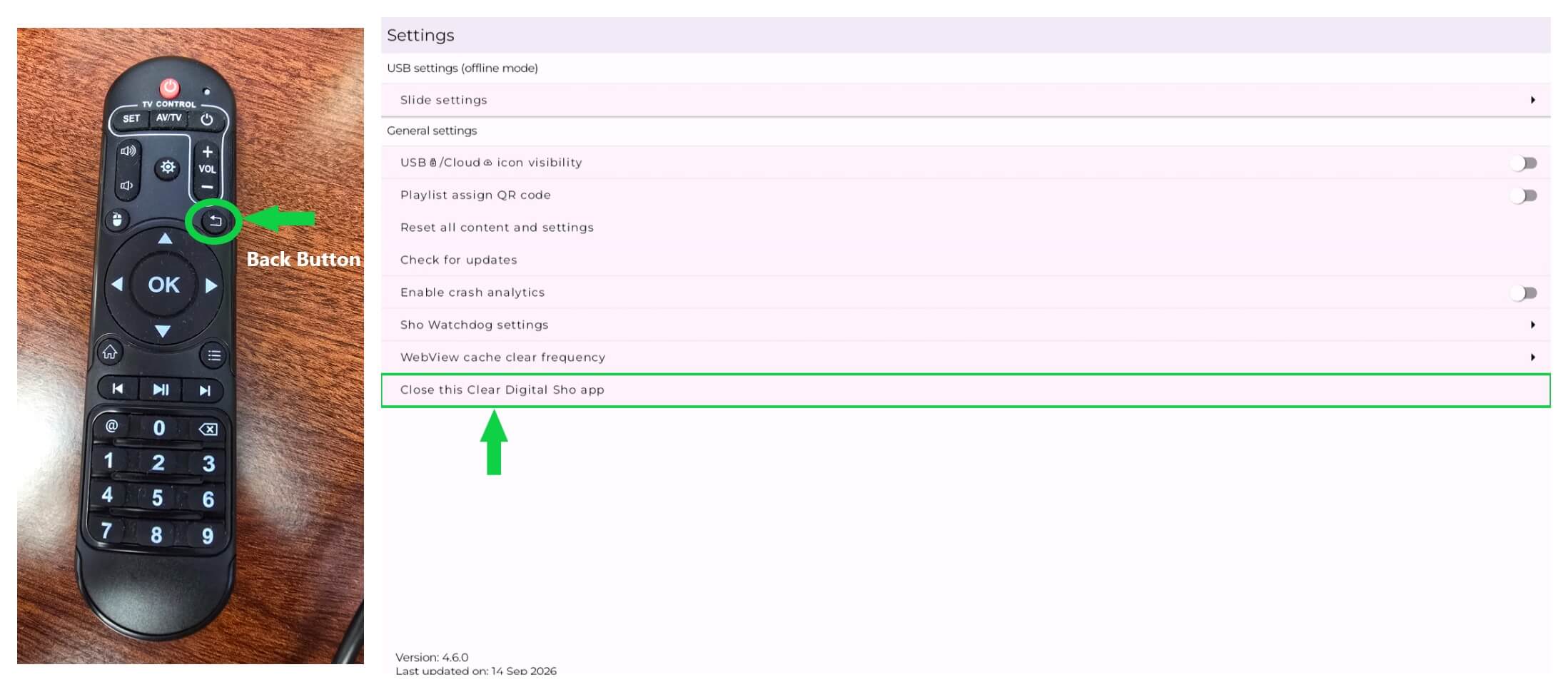
Back out of the Sho app by clicking “Back” on the remote, or Right Clicking from a connected mouse, and click “Close this Clear Digital Sho app.” -
3
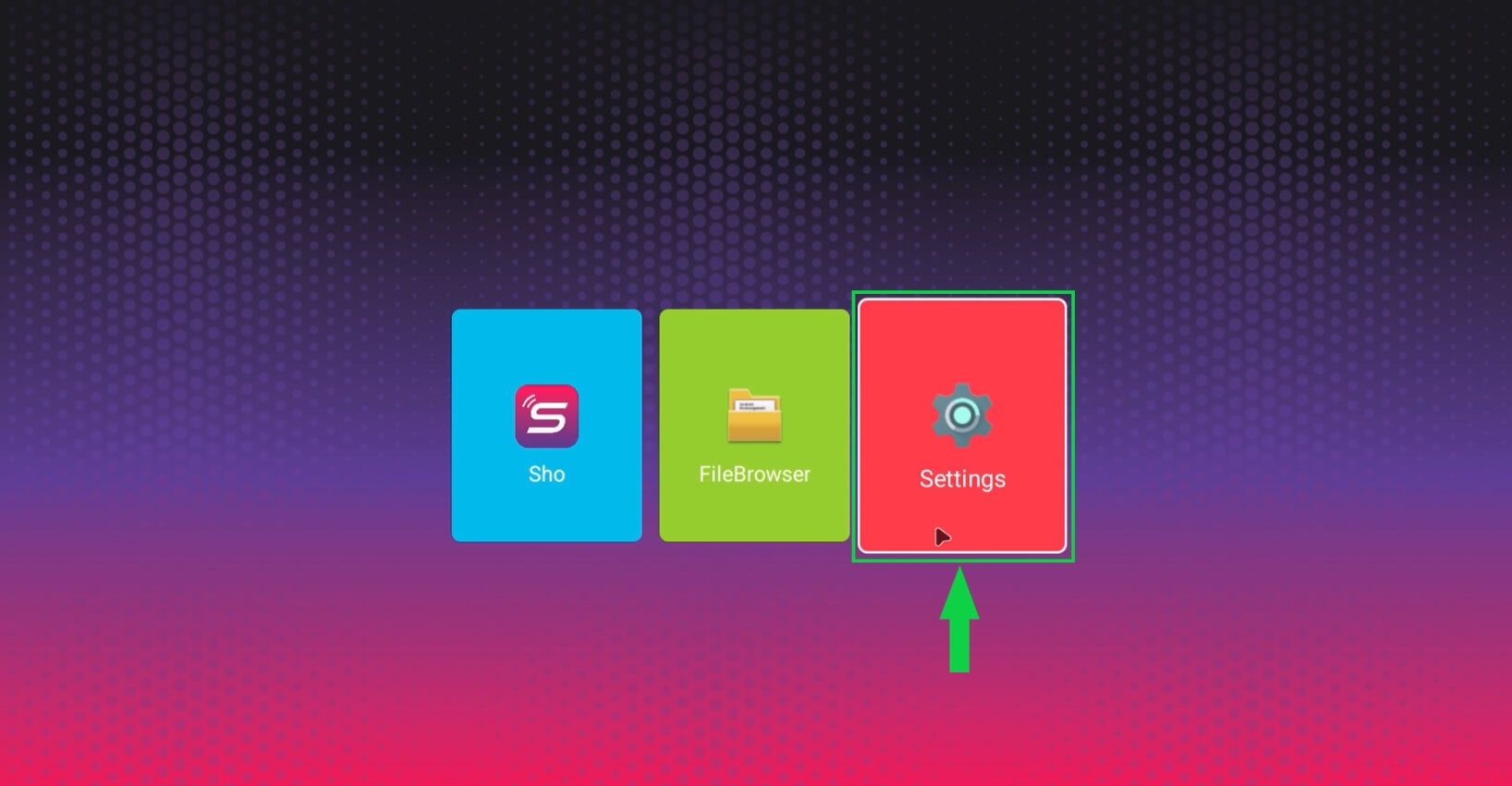
Navigate to the “Settings” icon by clicking the right arrow on the remote, or selecting it with your wireless mouse:
4
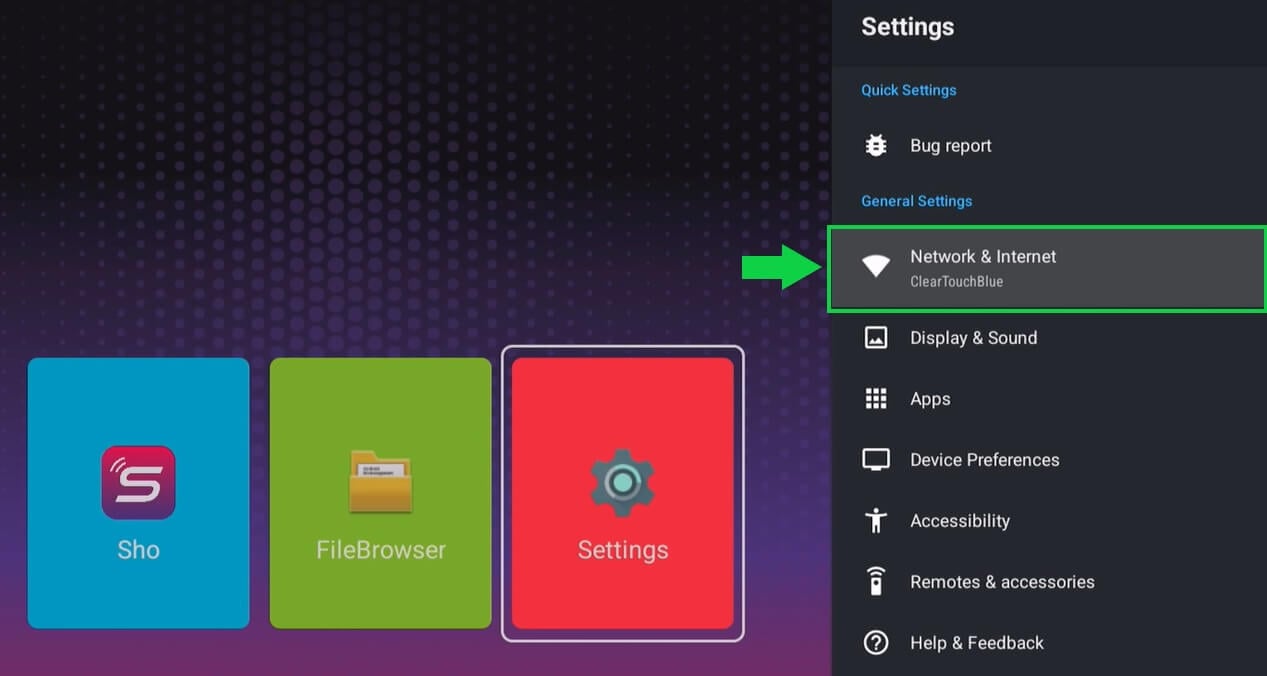
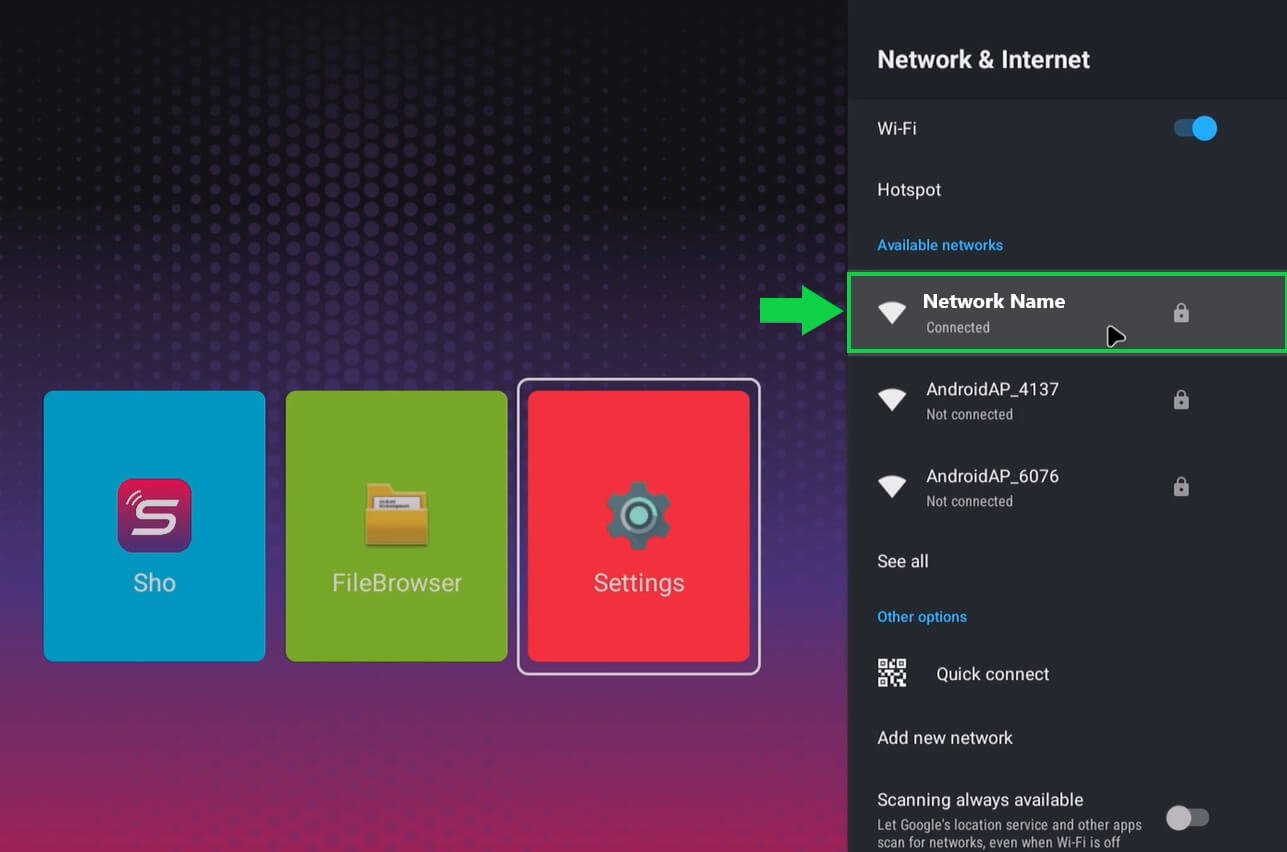
In Settings, select “Network and Internet” to connect to your network:
5
6
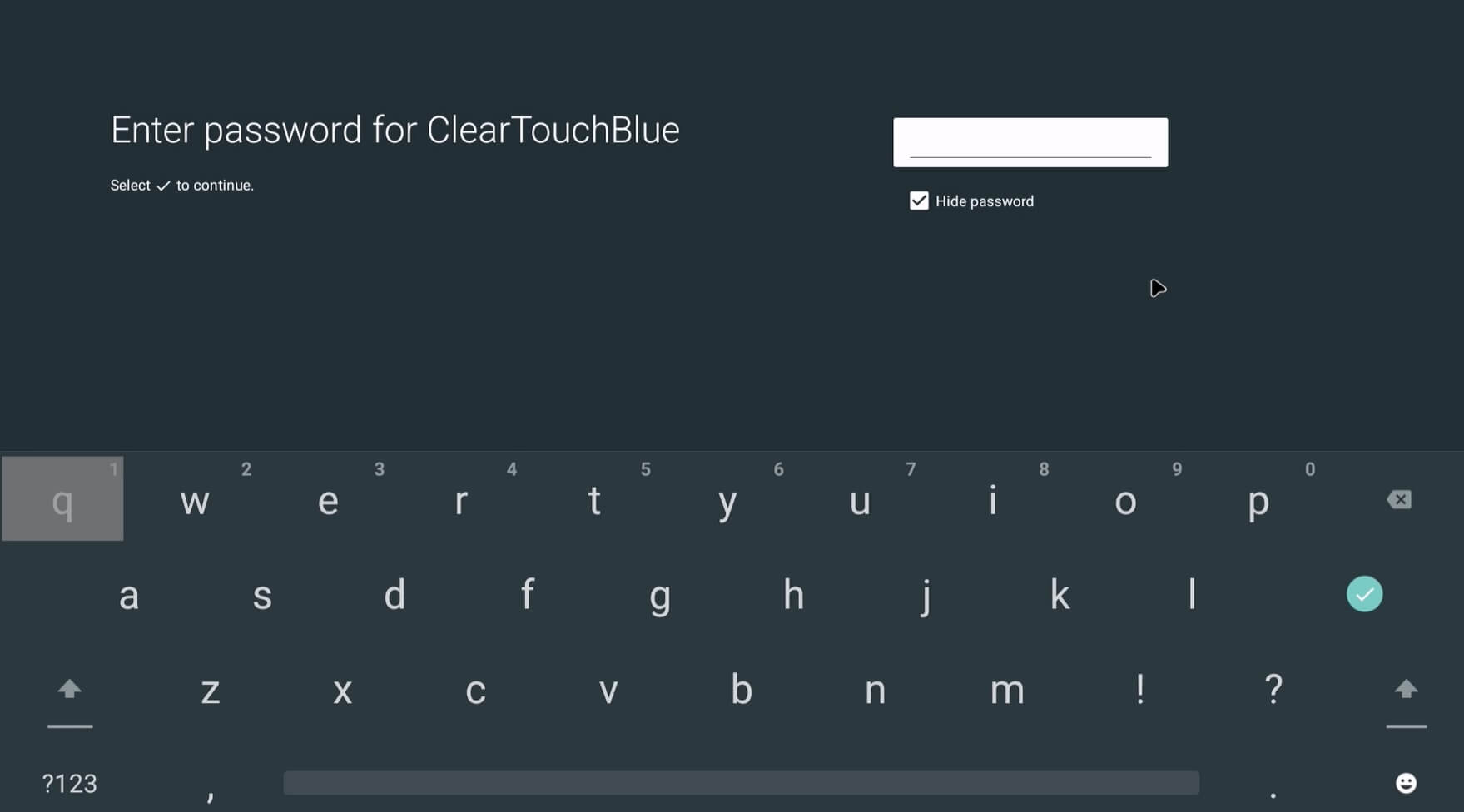
Enter your network credentials (only required for WiFi) and press Enter (or Green Check Mark) - while you can use the on screen keyboard with the remote, this is where a keyboard comes in handy:
7
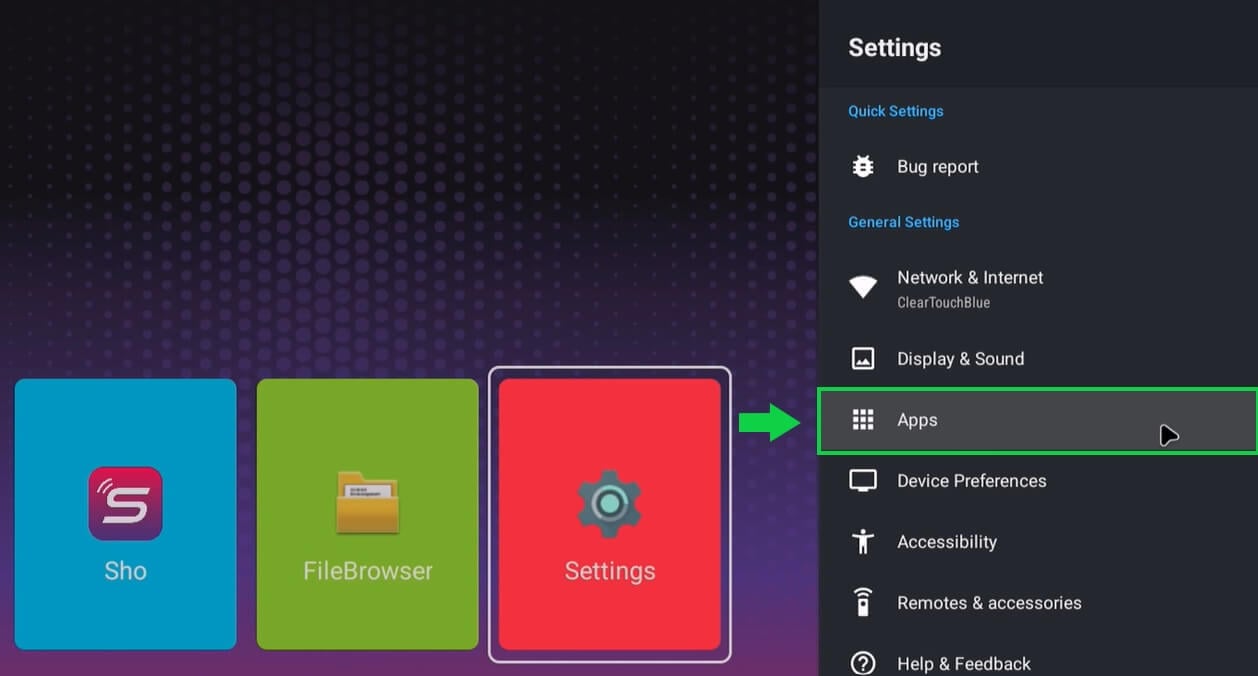
Right click with your mouse, or click Back on your remote, and back out of Network Settings, into the main Settings Menu. Select “Apps”:
8
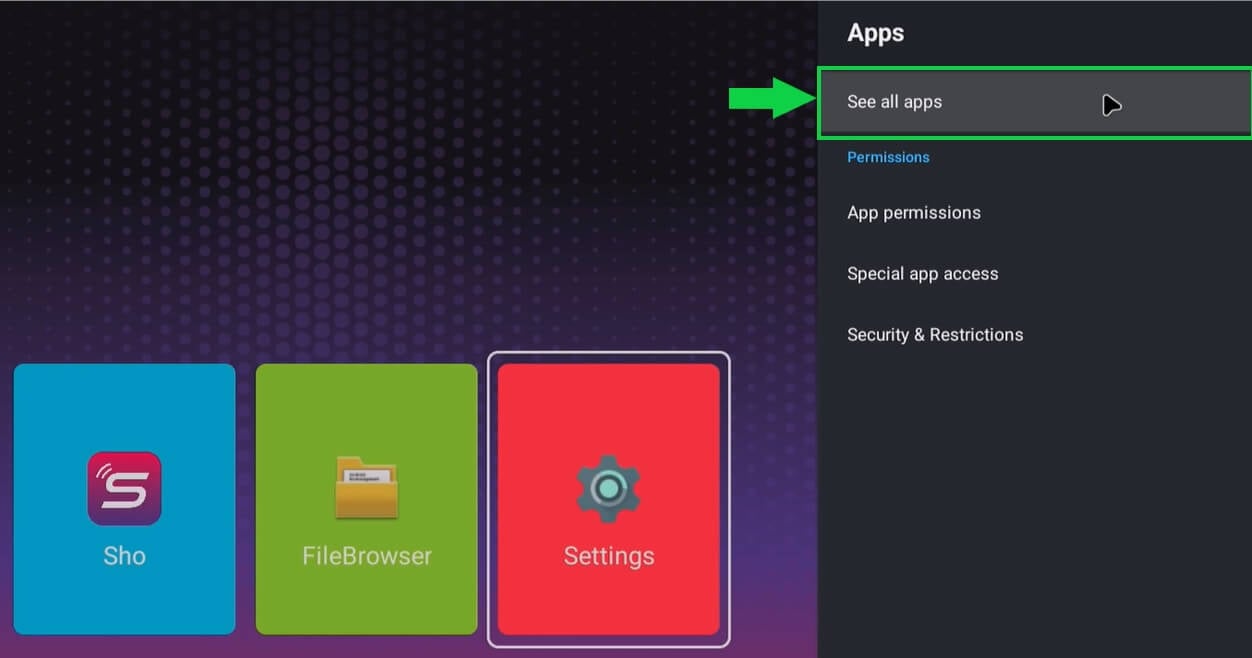
Select “See all apps”:
9
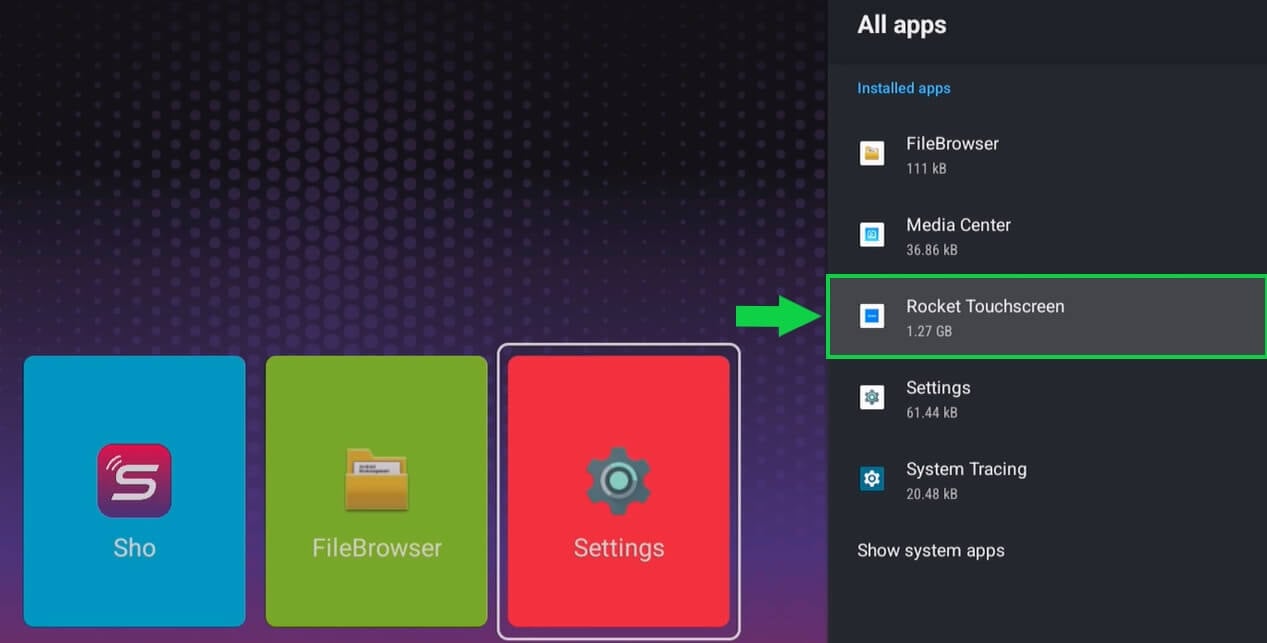
Select “Rocket Touchscreen”: (if it doesn’t appear here, select “Show system apps”)
10
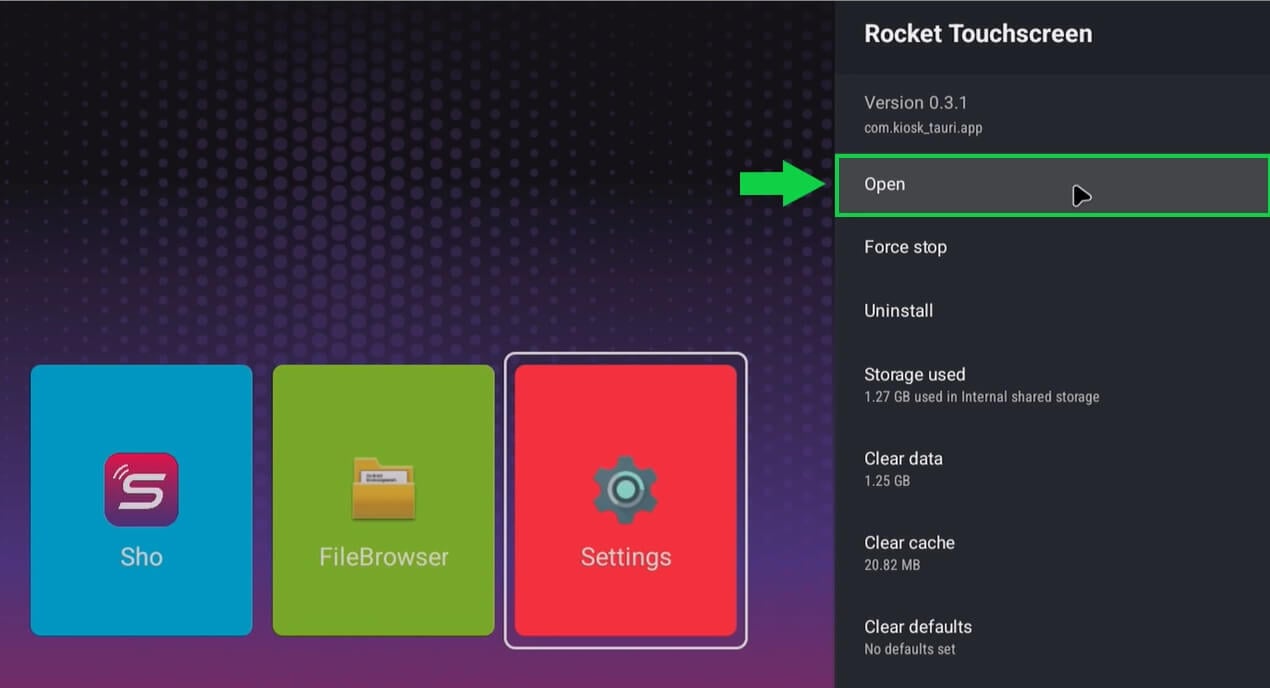
Click “Open”:
11
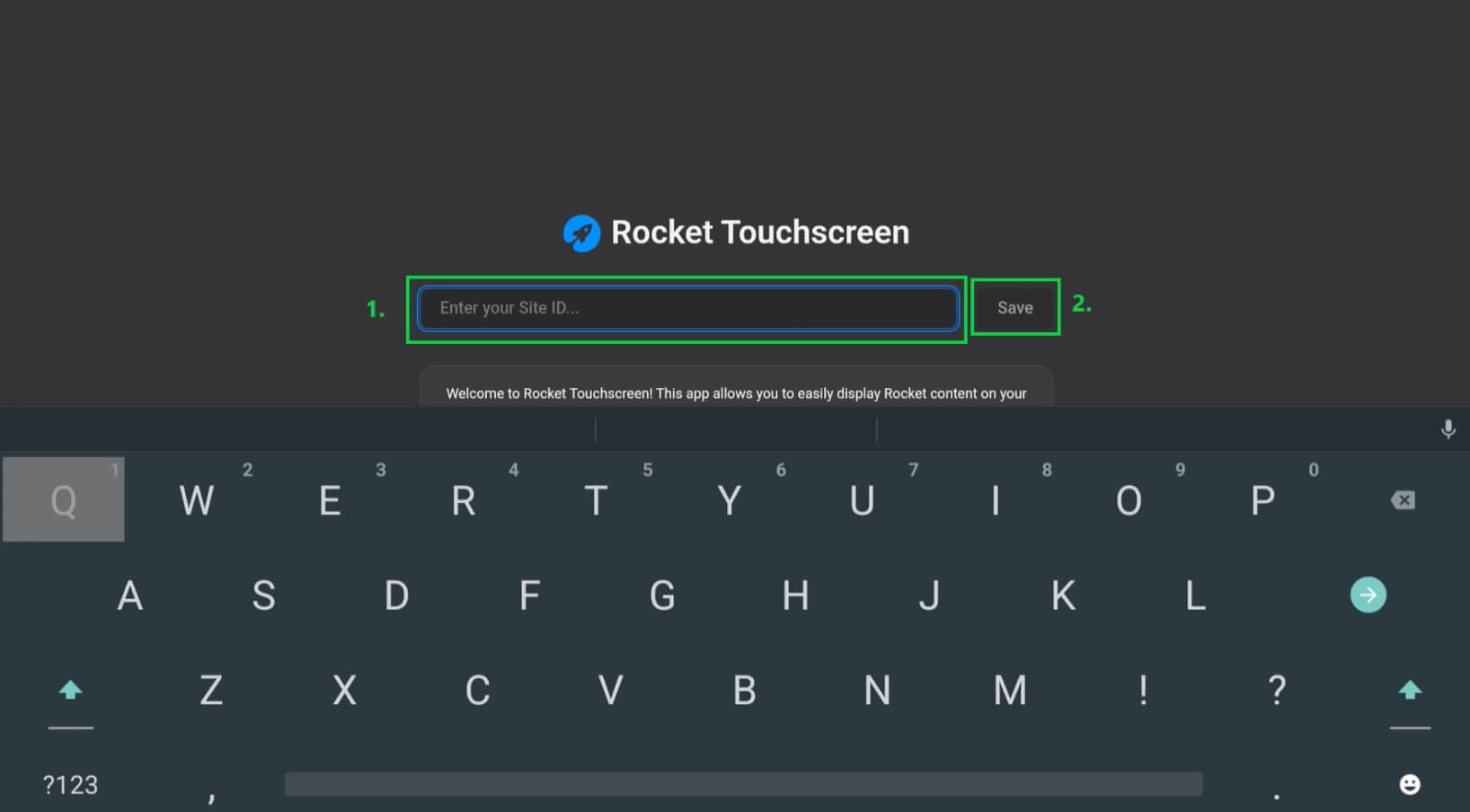
Enter your site ID. This is the alphanumeric string at the end of YOURexample, if your site URL is https://site.rocketalumnisolutions.com/home/6810c977bc0fa455f90d14fa2 then the ID would be 6810c977bc0fa455f90d14fa2
If you are unsure what your site ID / URL is, OR are only involved in the installation side of the project, please reach out to the project owner to ask for their Rocket site URL.
12
Setup complete. We hope you enjoy your Rocket Touchscreen experience!
Reboot note
Note: Each time you reboot or turn off/on your RocketBox, you will need to close the auto-launch Sho app, and select “Rocket Touchscreen” app from the Apps list in Settings. (You will NOT have to enter your Site ID or reconnect to the Internet each time) However, the RocketBox can also run powered on 24/7, if need be.