

If you are using your own hardware, please reference this document to enter kiosk mode.
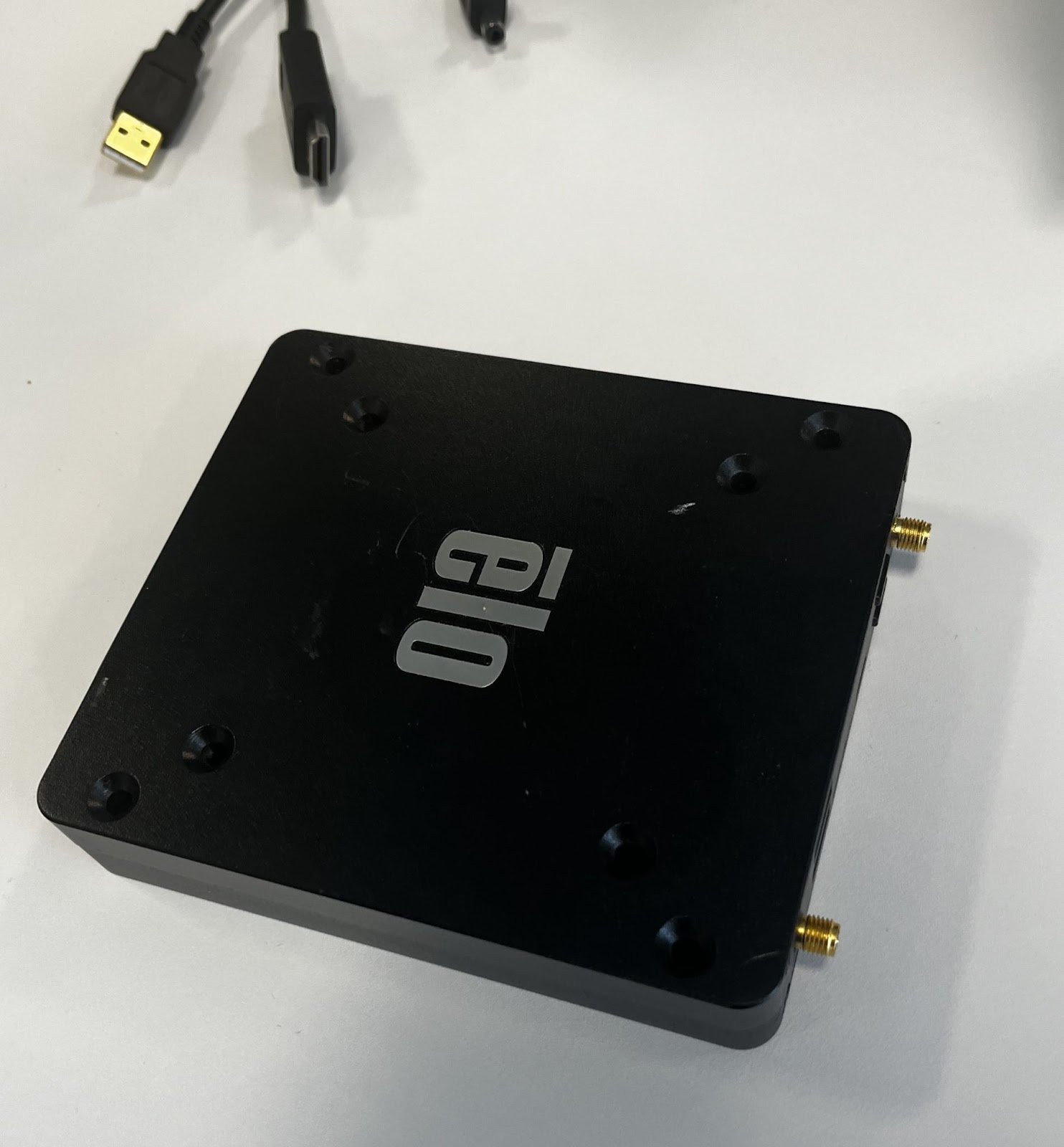
Step 1: Locate the Elo Backpack Computer Module (the small black box, NOT the touchscreen)
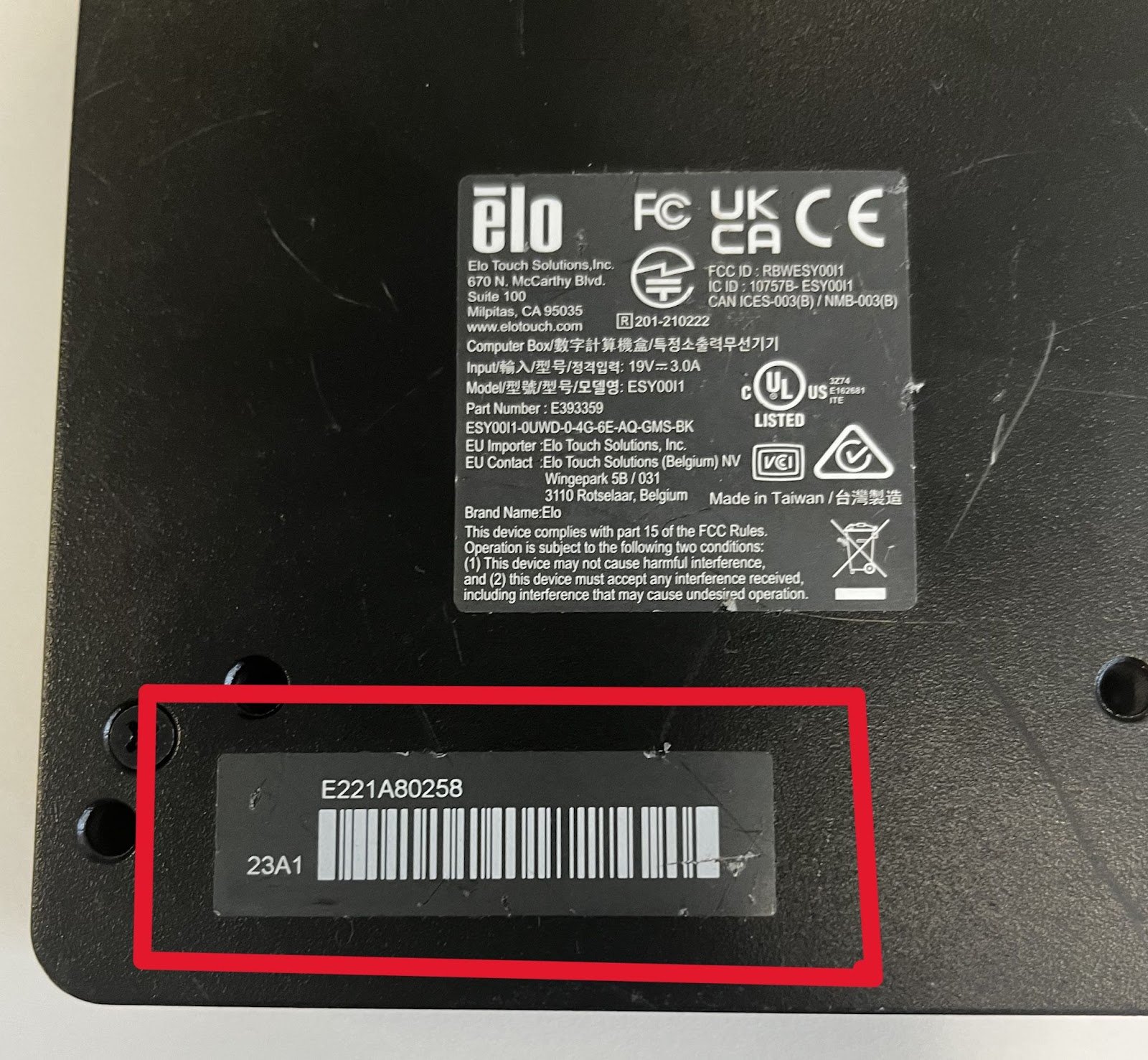
Step 2: Email the Serial Number on the back of the Elo Backpack Computer Module (10-digit number above the barcode
Step 3: Plug the Elo Backpack Computer Module into the touchscreen via HDMI and USB
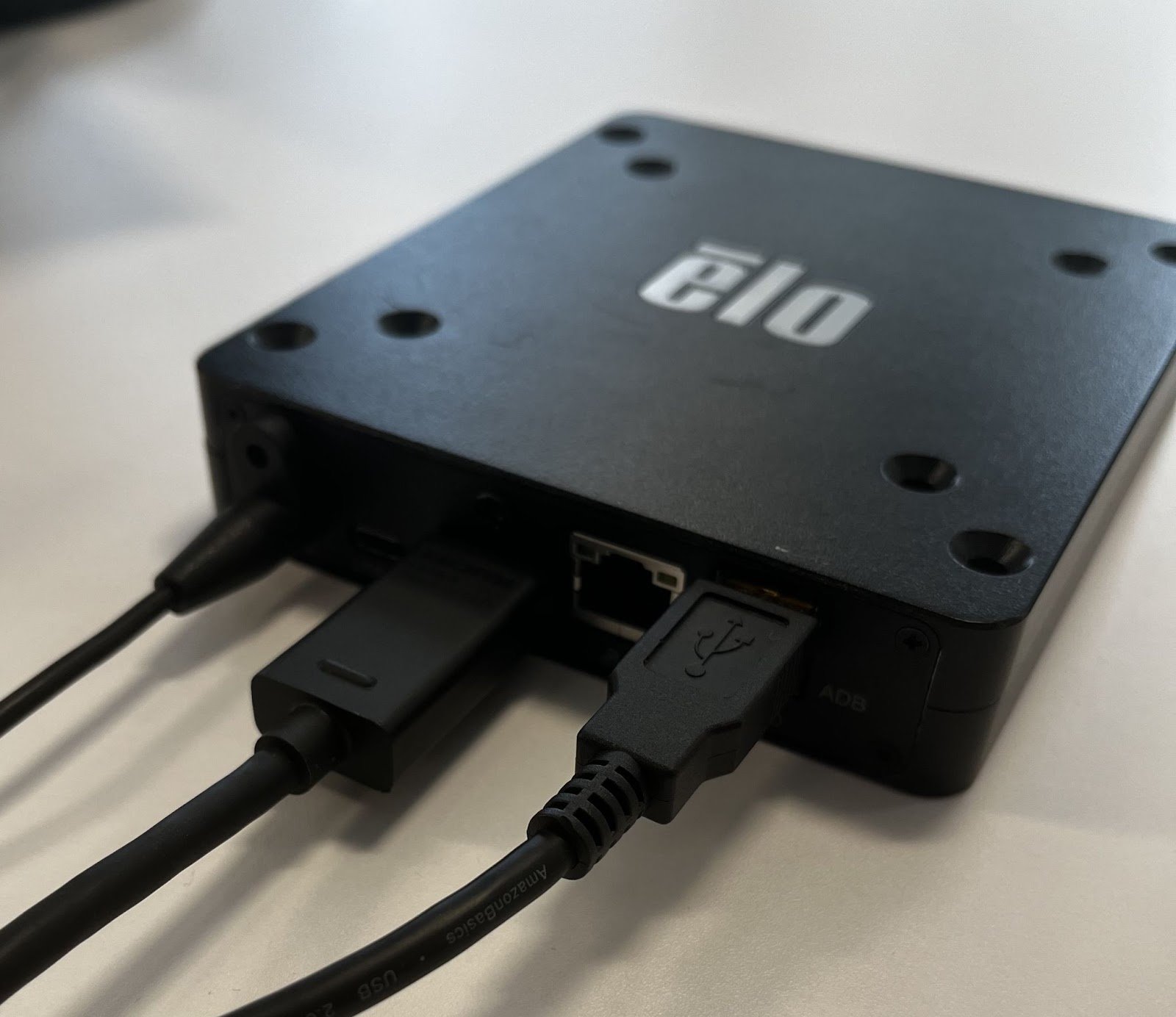
Step 4 (OPTIONAL): If not using Wi-Fi, plug the Elo Backpack into ethernet
Step 5: Power on the touchscreen and the Backpack (if asked for a password, the default screen password is 1elo or rocket)
Step 6: Connect to Wi-Fi
(DO NOT
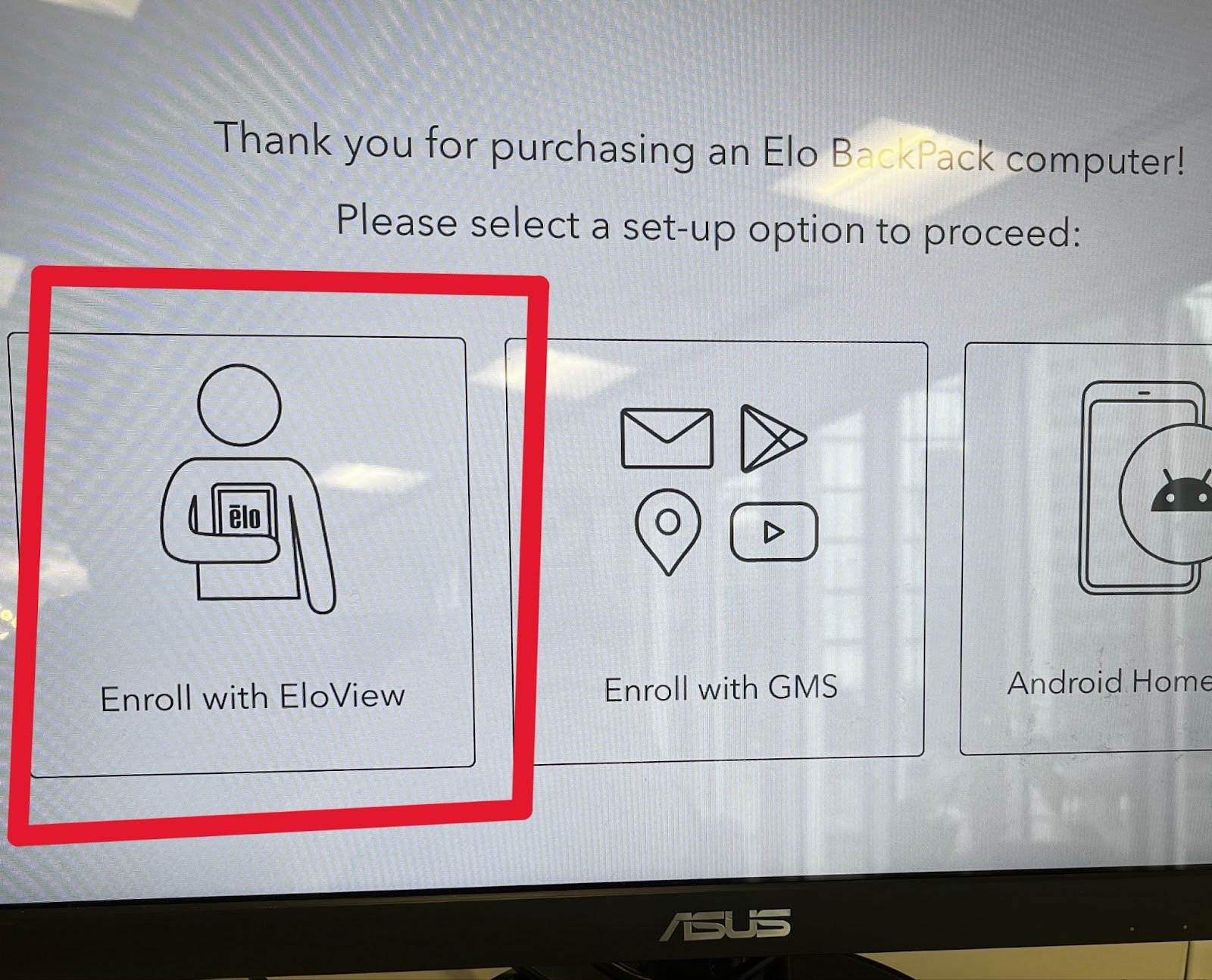
Step 9: Once the account is set up by a Rocket team member the device will reboot. You will then see the message: “This device has not been set up” or “No content is configured for this device”. The Rocket Alumni Solutions team will set up your device and deploy the content remotely.
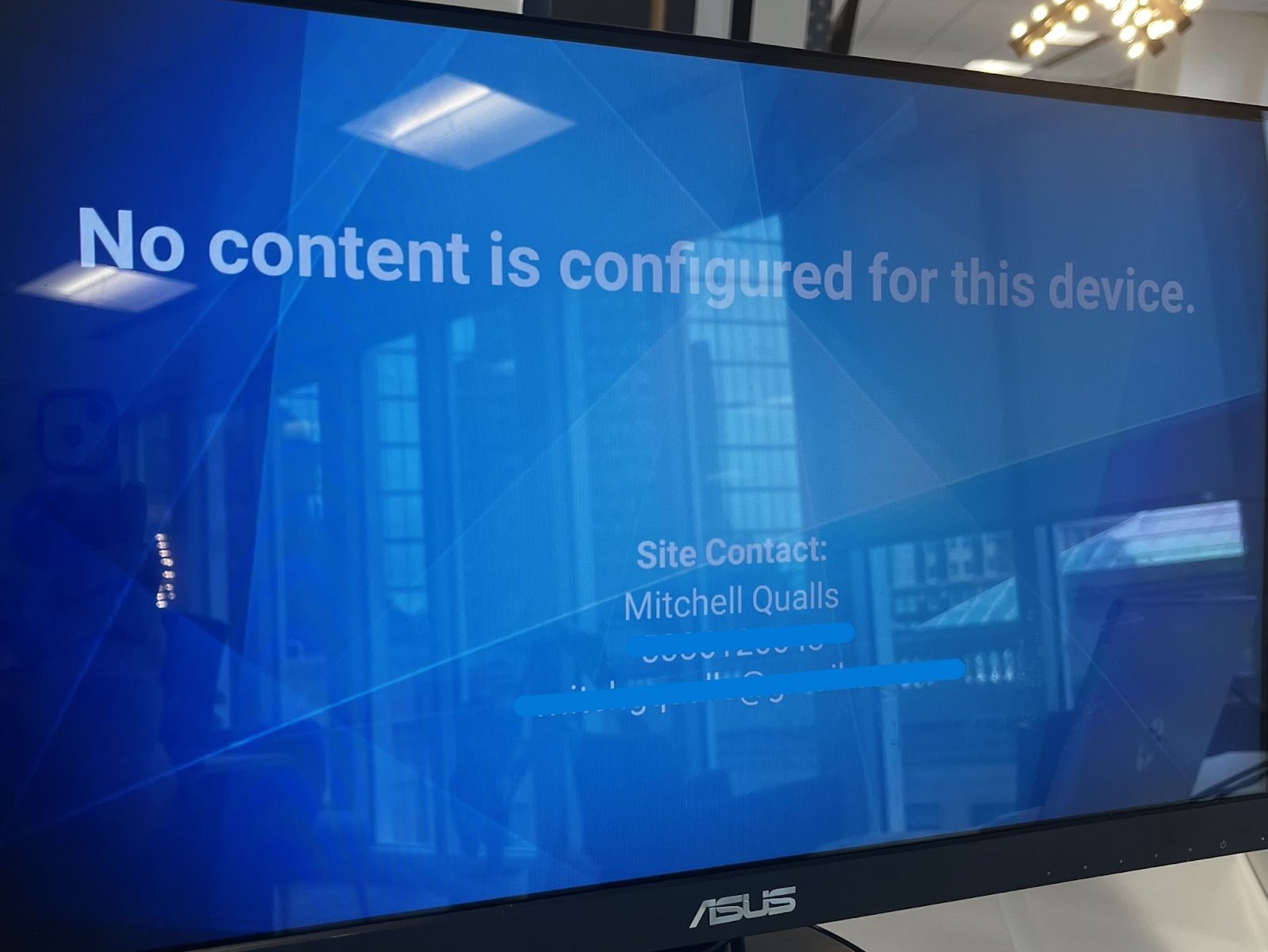
Step 10: Once your site has been linked to the Elo Backpack by a Rocket team member it will appear on your screen
Step 11: Once the Rocket site appears, please email or text a photo of the installation to our team with your school name!
follow these steps to reset the device. And then follow these steps to enable future updates.
Open settings or change Wi-Fi on an existing Backpack
Use these steps for a confirmed Elo Backpack that is already configured. You do not need to see “Not found” to change its Wi-Fi network. Do not repeat enrollment or reset the device.- Click the Backpack’s physical Home and Power buttons together three times without holding them. This can take more than one attempt.
- On the white lock screen, tap the lock icon or swipe up and enter the device’s current unlock password. For an installation still using defaults, the two screen-unlock options are listed in Power on the touchscreen and Backpack above.
- Open the three-line menu in the top-right corner and select Admin. Enter the device’s current Admin password. For an installation still using defaults, Admin uses the digit-prefixed default listed above; the other screen-unlock option is not the documented Admin default.
- Open Settings → Android Settings. To change Wi-Fi, continue to Network & Internet, confirm Wi-Fi is on, and select the school network. Enter the school network password directly on the device; do not send it to Rocket.
- If the saved network will not reconnect, forget it and connect again. Confirm the status shows Connected, then return to Rocket and check that your site loads.