

Rocket Alumni Solutions Kiosk Set Up
Chrome OS Kiosk Mode Setup Steps:
Please follow this guide linked here.
Windows 10 / 11 Kiosk mode setup steps:
Kiosk Mode allows Google Chrome users to utilize a single window of their computer. Simply, it blocks the user’s access to any other part of the computer. If you want to set up kiosk mode in Google Chrome, here is our full guide on how to do it on your computer.
Please follow each step carefully.
It should ultimately look like this. No browser URL bar or controls.

Set up Kiosk Mode in Google Chrome Browser
To set up Kiosk Mode in Google Chrome, follow these steps-
1. Open the Google Chrome window on your computer.
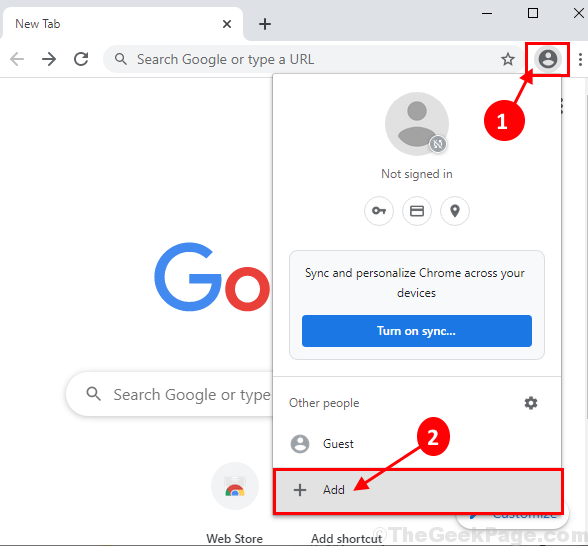
2. Now, click on the User account icon on the upper left corner of the Chrome window, and then click on “Add“.
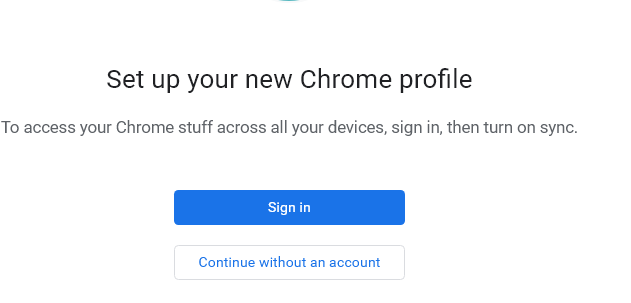
3. You can click on continue without an account.
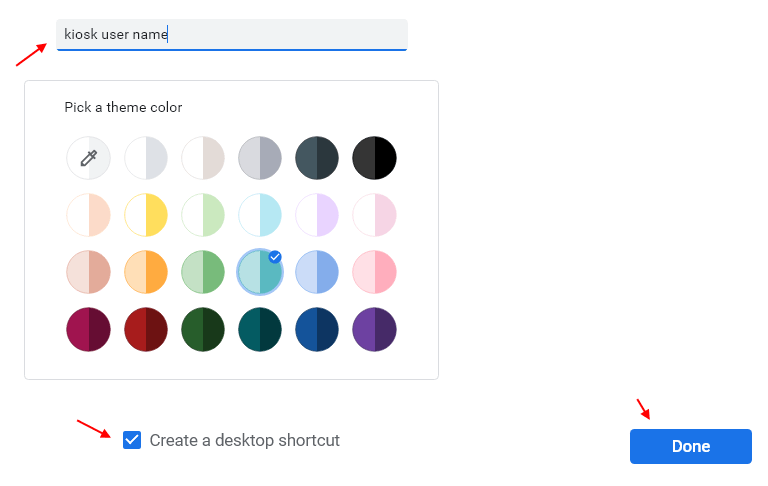
4. In this window, under ‘Add person‘ give a name to the account. Now, select any icon of your choice for the account.
5. Make sure, “Create a desktop shortcut for this user” option is checked. Finally, click on “done” at the bottom right corner of the window, to complete the process.
5. A new Chrome browser window will be opened for the guest account. Close all Google Chrome windows which are already opened on your computer.
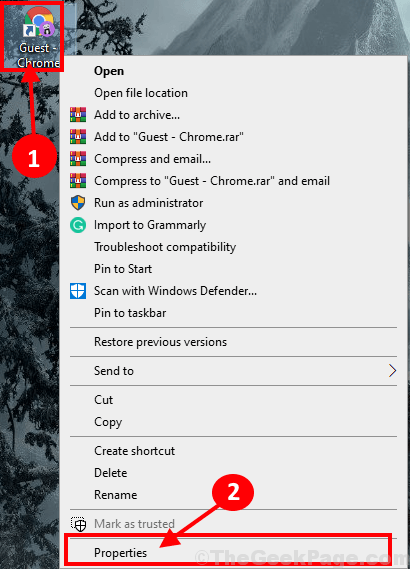
6. Now, go to the desktop and then right-click on the new chrome shortcut and then click on “Properties”.
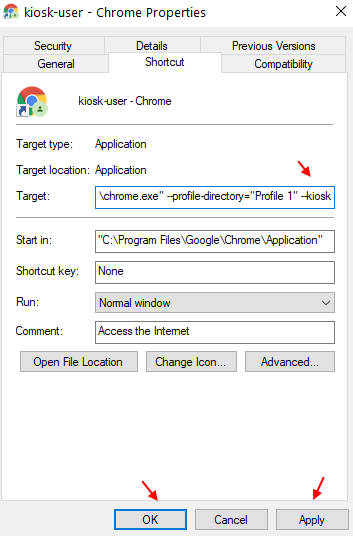
8. Finally, click on “Apply” and “OK” to save the changes on your computer.
9. Now, click on this shortcut again to open chrome in kiosk mode.
Note: – To get out of Kiosk mode , just press Alt+ tab keys together from your keyboard and then close the chrome from right clicking on taskbar chrome icon.
A summary of these steps is:
- Right-click on Chrome, and create a shortcut (while on your website https://site.rocketalumnisolutions.com/home/492?touchscreen=true)
- Right click on that shortcut, and go to properties
Next we want to make the shortcut automatically startup after a power outage /reboot:
Right click on the shortcut icon, copy it, and paste it onto the desktop to make a second shortcut icon. You will drag this second shortcut icon into a startup folder in the next step.
Navigate to:
Drop the shortcut there, then reboot. Chrome should launch full screen. If you encounter a login screen, you may need to enable automatic login to bypass the login screen so that the device will automatically enter the kiosk mode after reboot.
Final Step to Disable Swiping Gestures:
Please follow these steps to disable multi finger swiping gestures that can exit the Kiosk mode. Depending on your specific Windows version and touchscreen, the exact words and phrases to describe the swiping gestures may differ, but they are generally in similar locations.
Final Result:
This should launch Google Chrome to the Rocket Alumni Solutions site in fullscreen mode immediately on startup. You should not be able to exit the fullscreen mode without the keyboard. When you have a keyboard plugged in, you can exit fullscreen by pressing F11 or the Alt + tab keys together.
The screen should look like this 24/7. If it doesn’t please contact support@rocketalumnisolutions immediately.