

STEP #1
Complete the initial LG screen setup
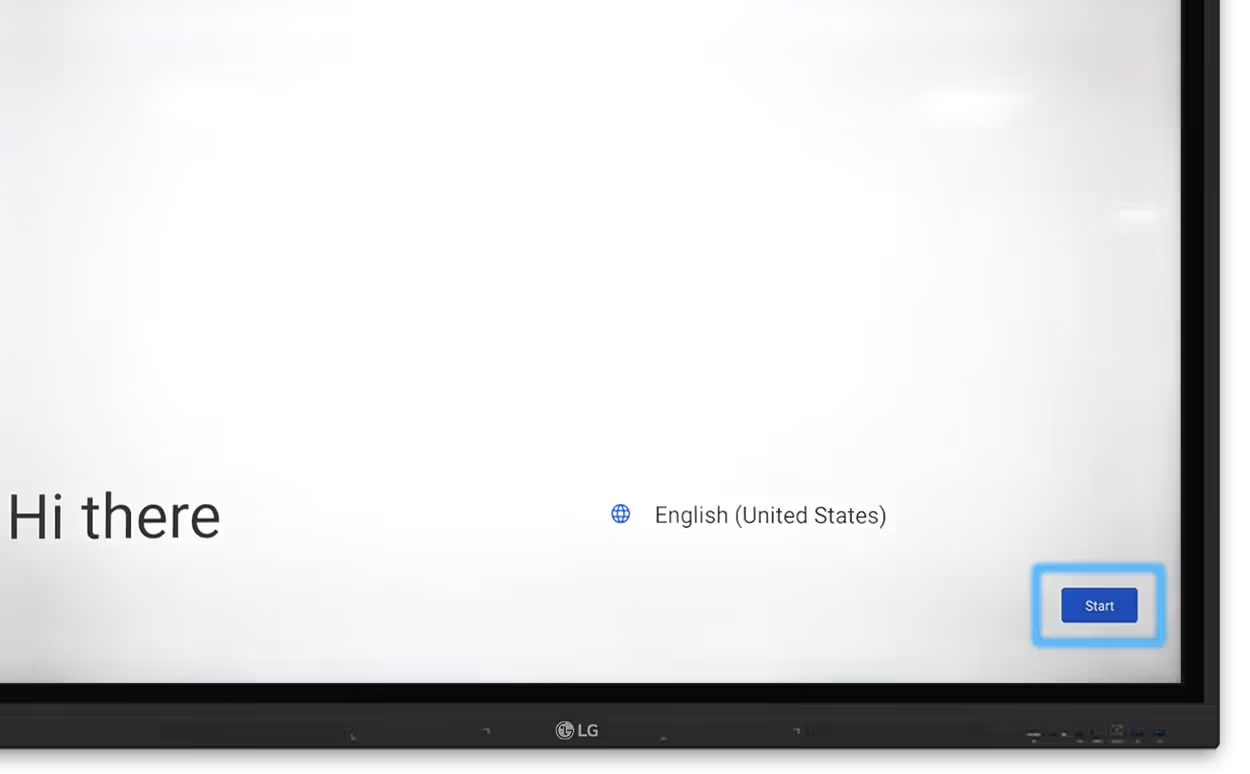
1. Click Start
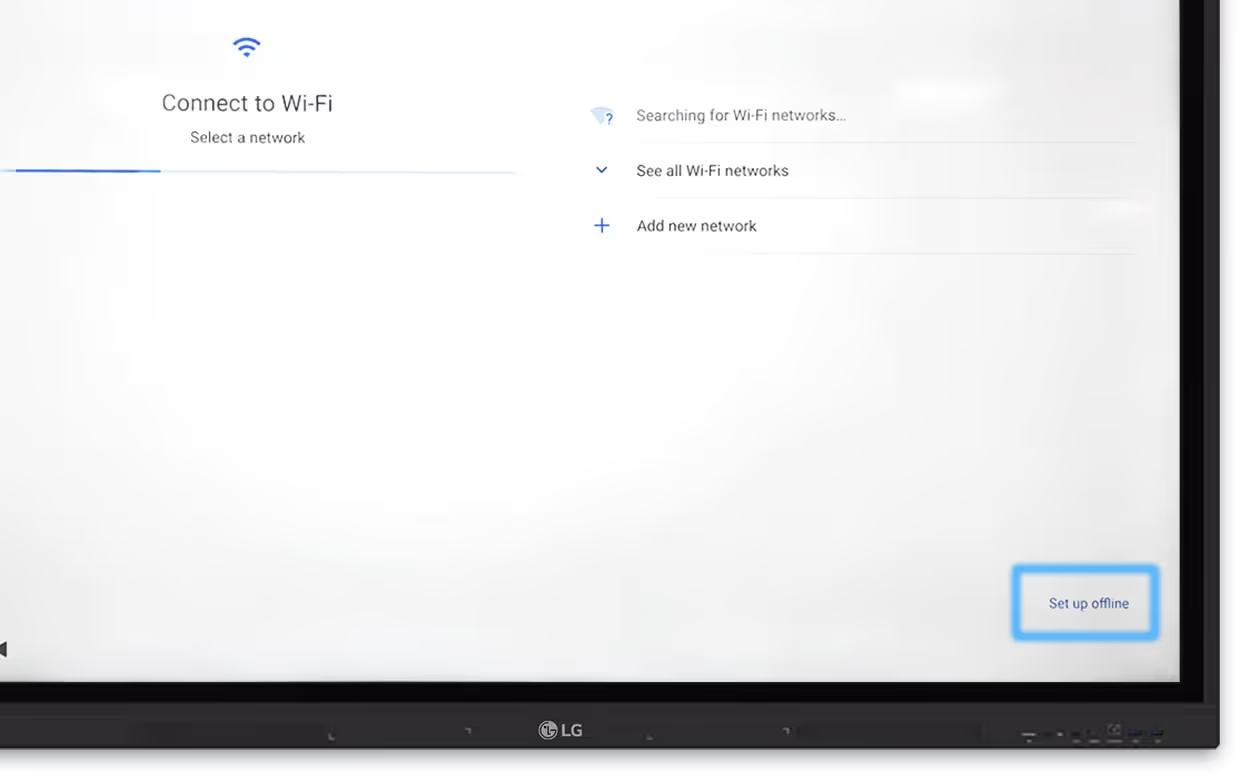
2. Click Setup Offline
3. Select Date & Time
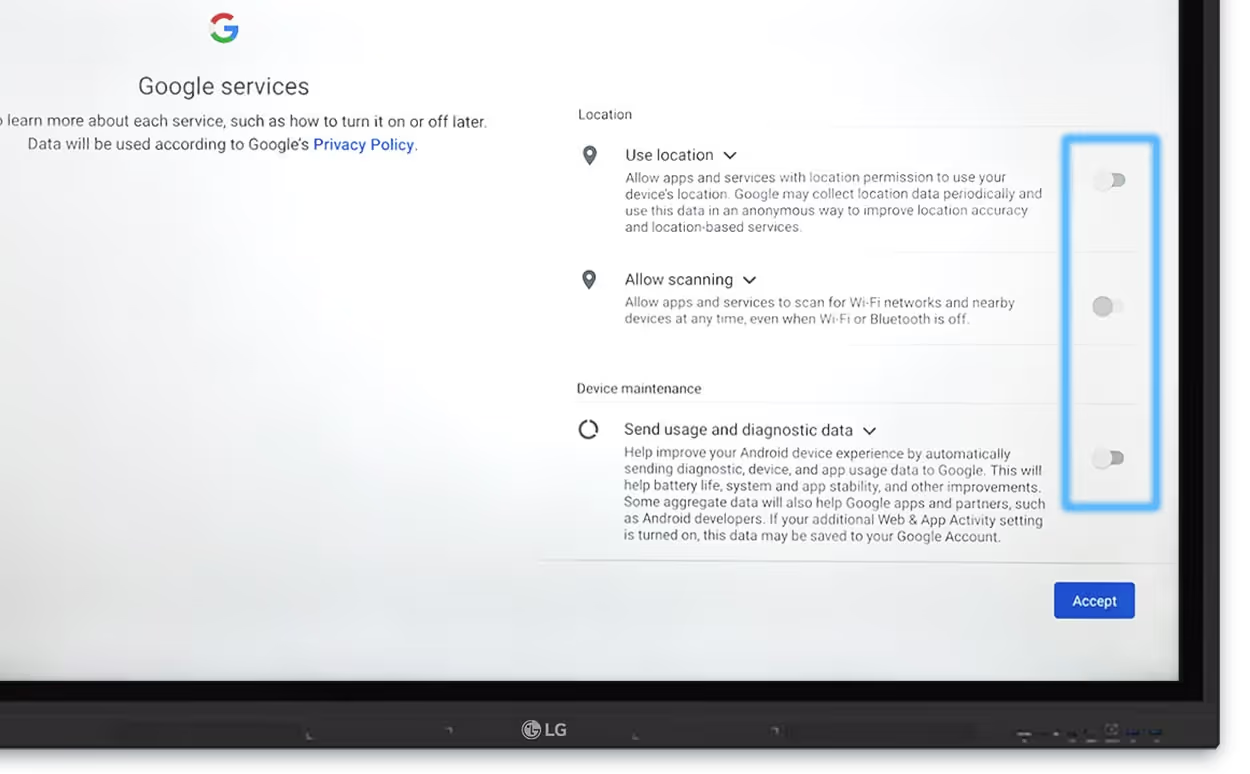
4. Disable all Google services
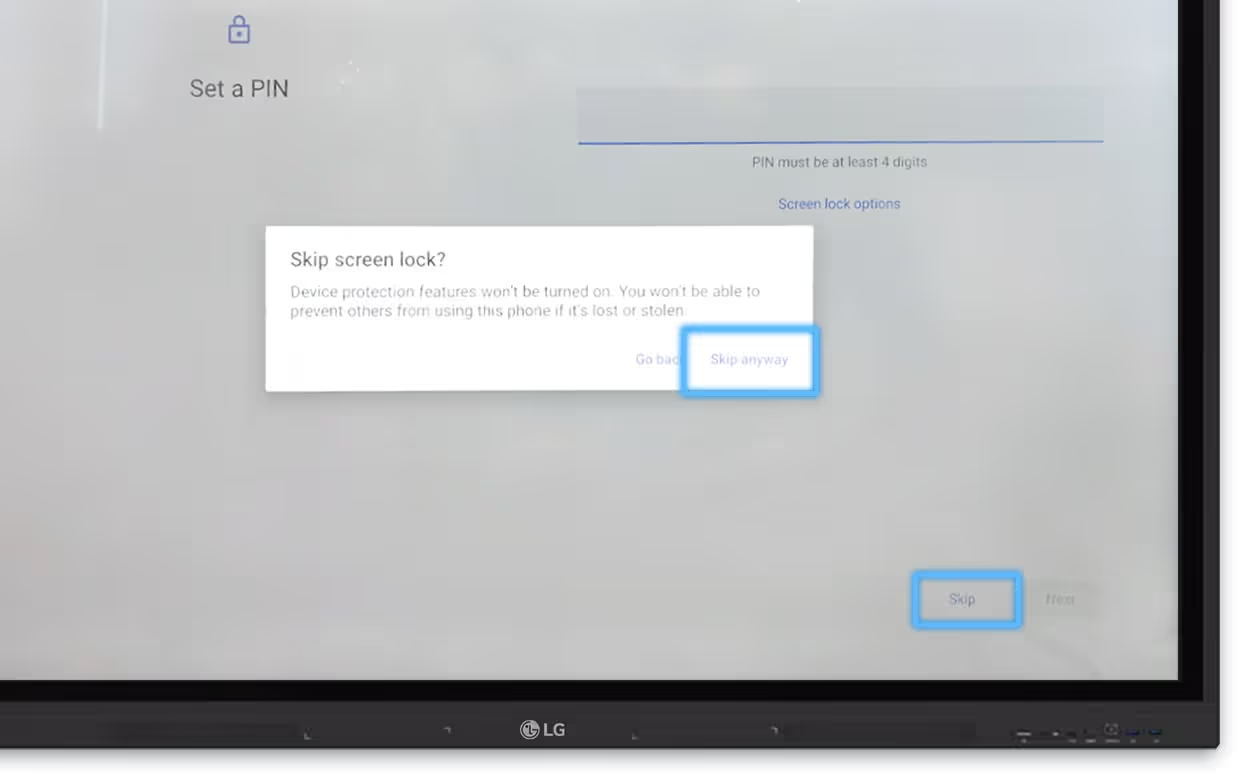
5. SKIP Set a Pin
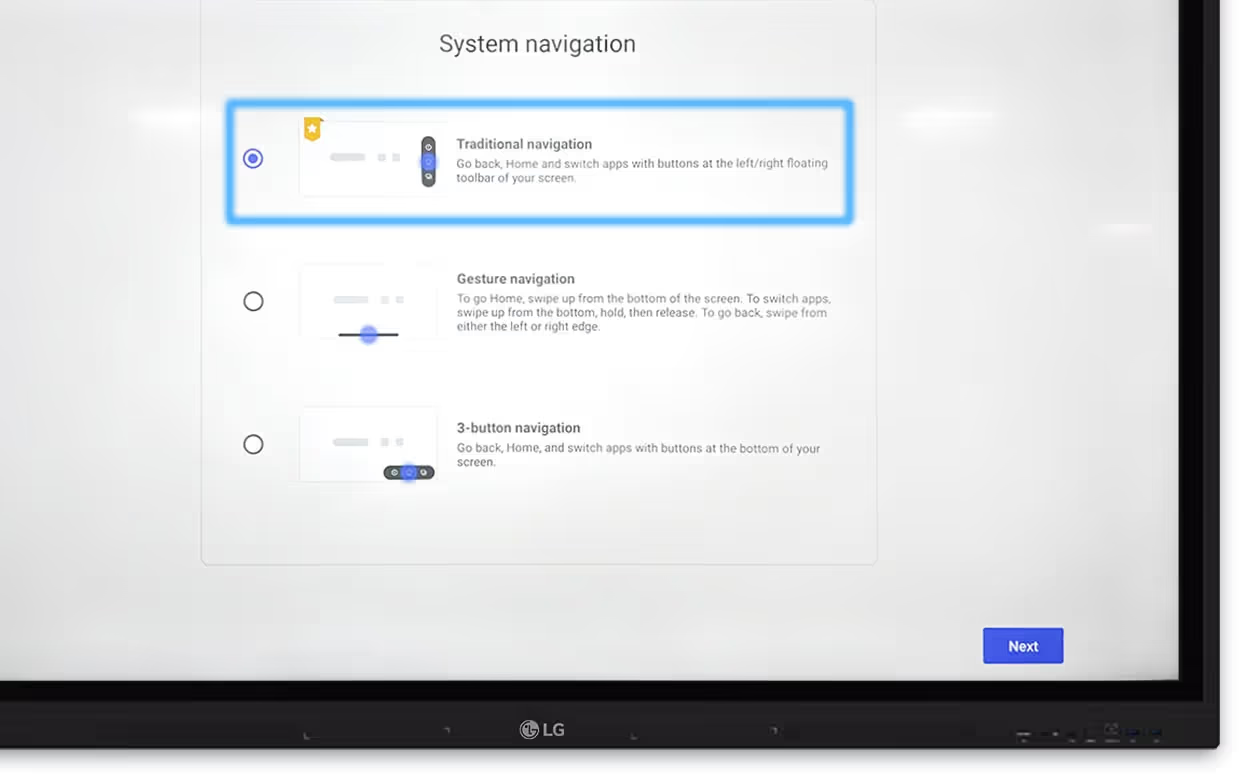
6. Select Traditional Navigation
7. Select your country + accept terms of use
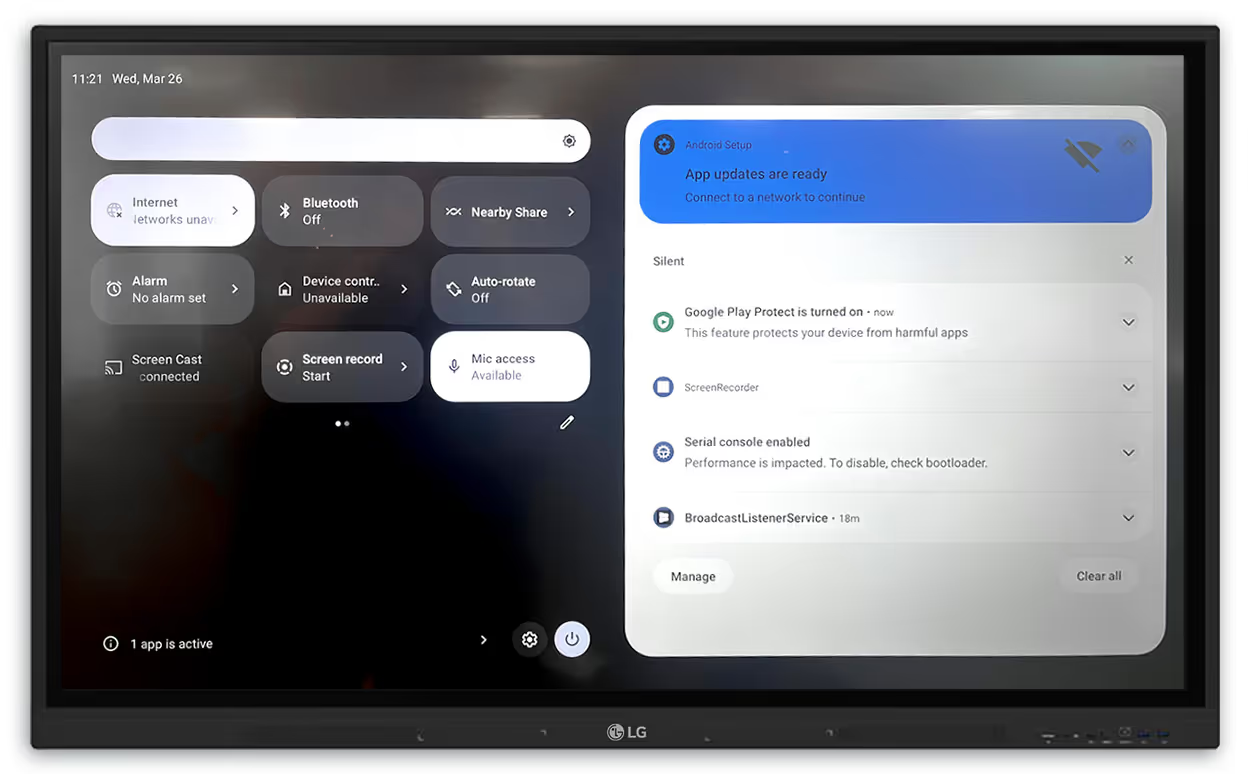
8. Swipe down from the top of the screen and select the GEAR icon on the bottom
9. Go to Administrator and Enable Administrator
10. Set a password
11. Select Startup & Shutdown
12. Disable Auto Power off
STEP #2
Remove the wifi indicator at the top of the screen
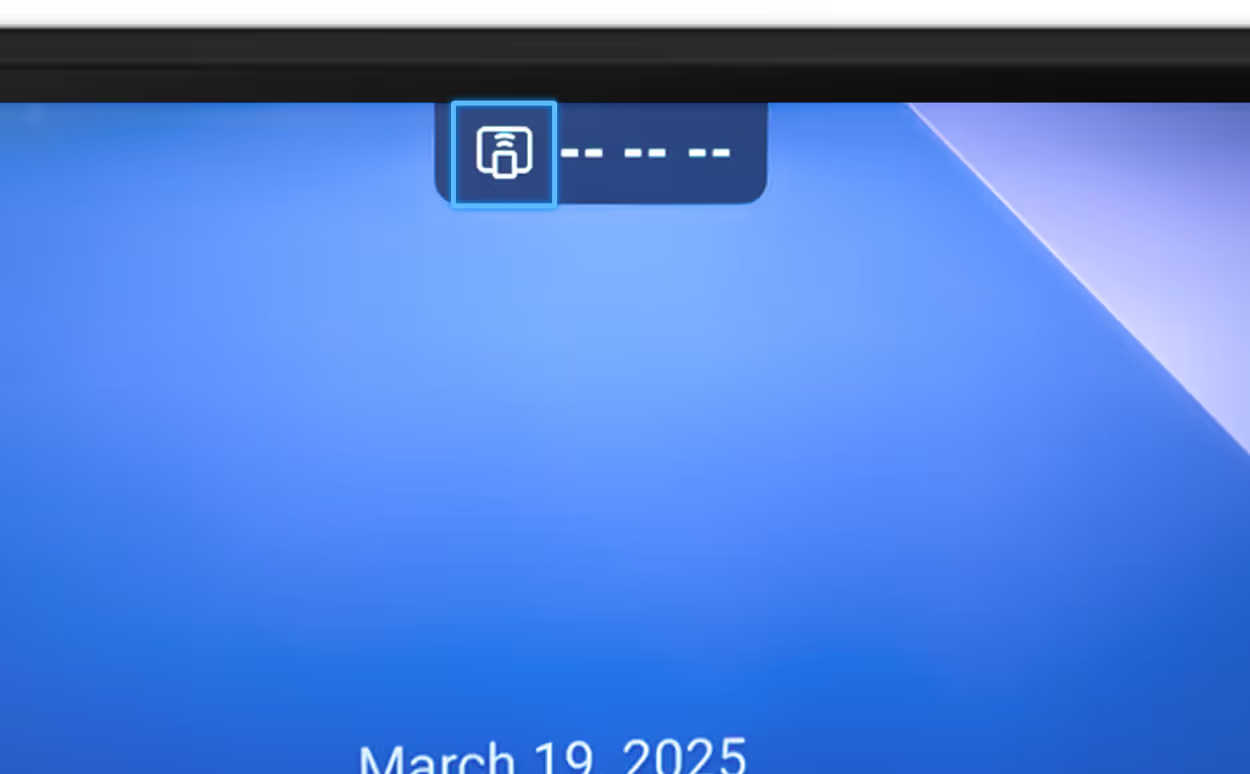
1. Click on the icon
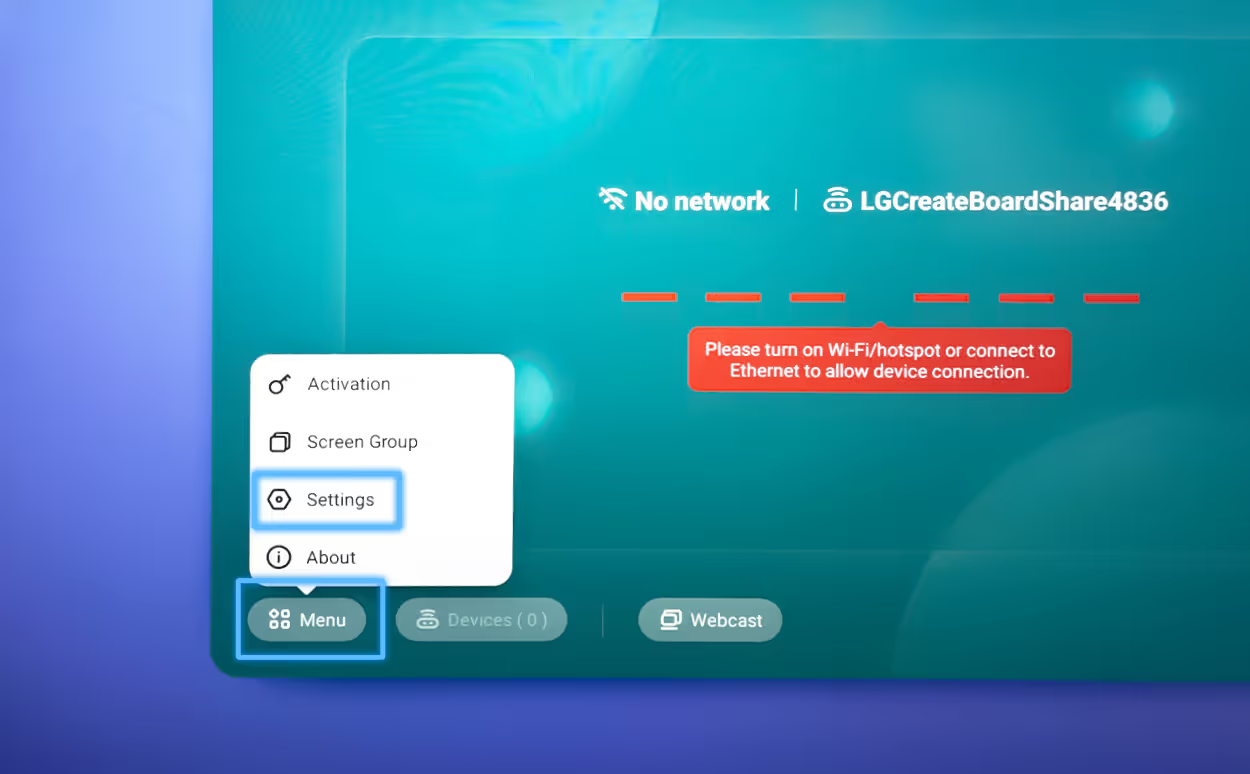
2. Select “View the main interface”
3. Agree to “User Agreements
4. Select Menu, then Settings
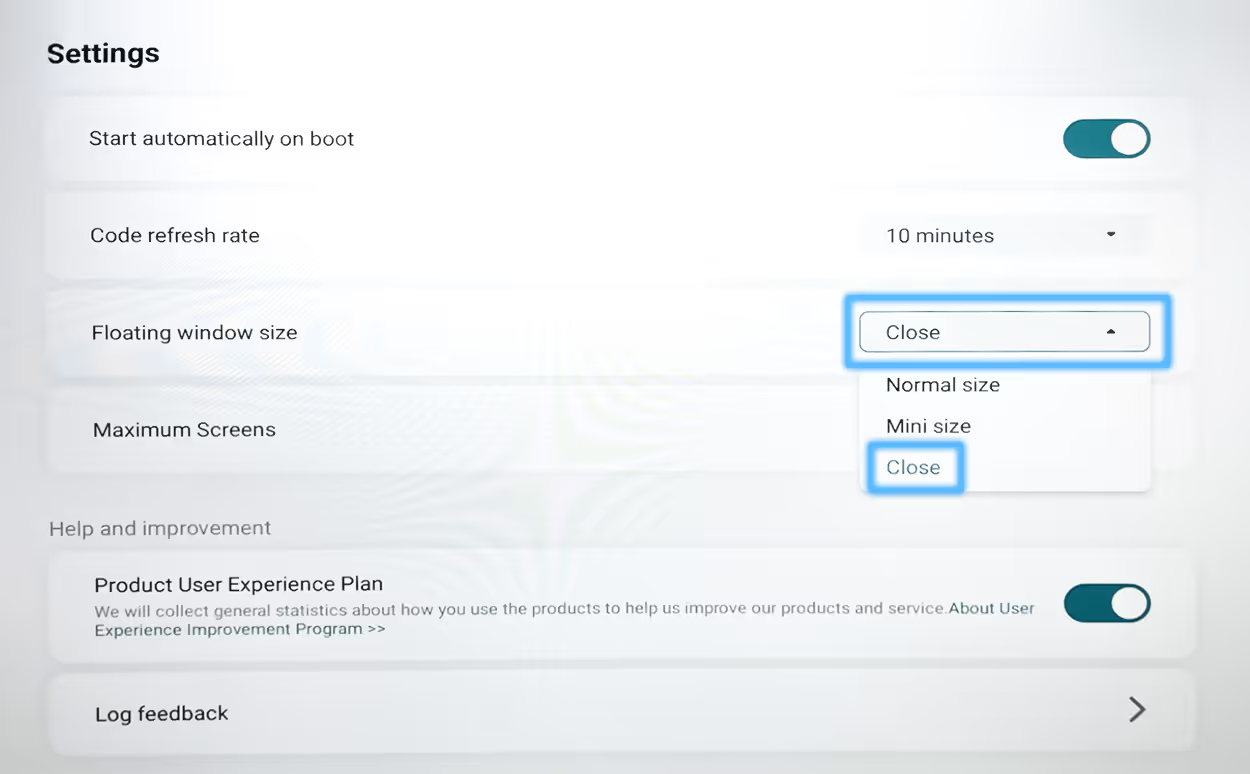
5. Scroll down until you see “Floating window size” and change it from Normal size to Close
STEP #3
On the remote, press INPUT then 1,3,7,9 in quick succession to access Debug Menu
(this may take a couple of tries)
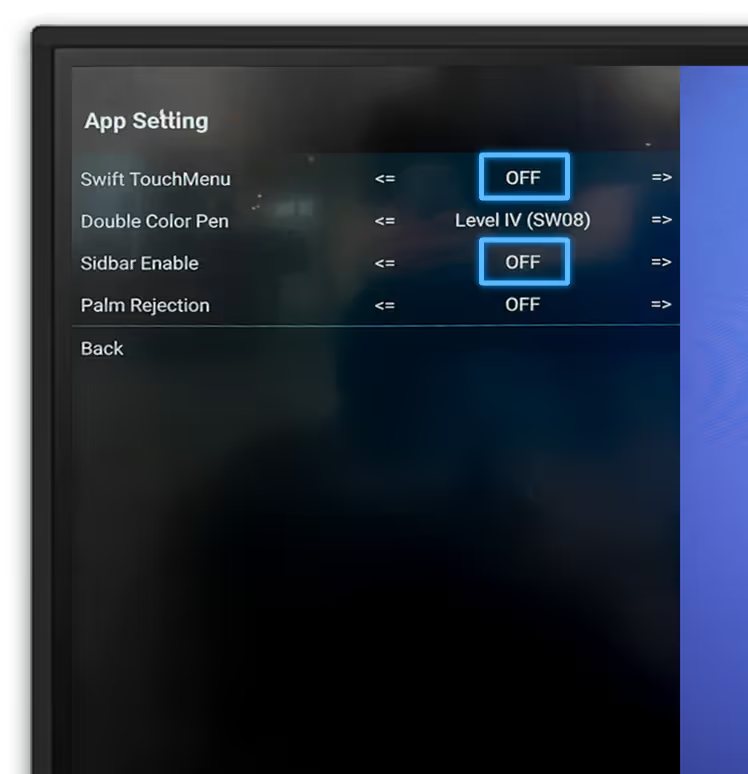
1. Go to App Setting
2. Turn Swift TouchMenu from ‘OPEN’ to ‘OFF’
3. Turn Sidbar Enable from ‘OPEN’ to ‘OFF’
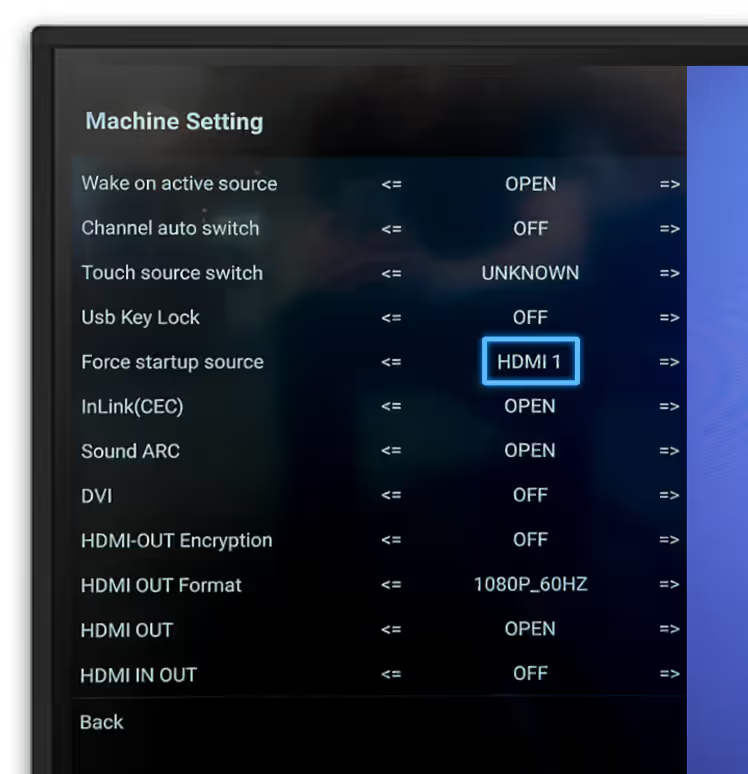
4. Go back and select Machine Settings
5. Turn Force startup source to ‘HDMI 1’
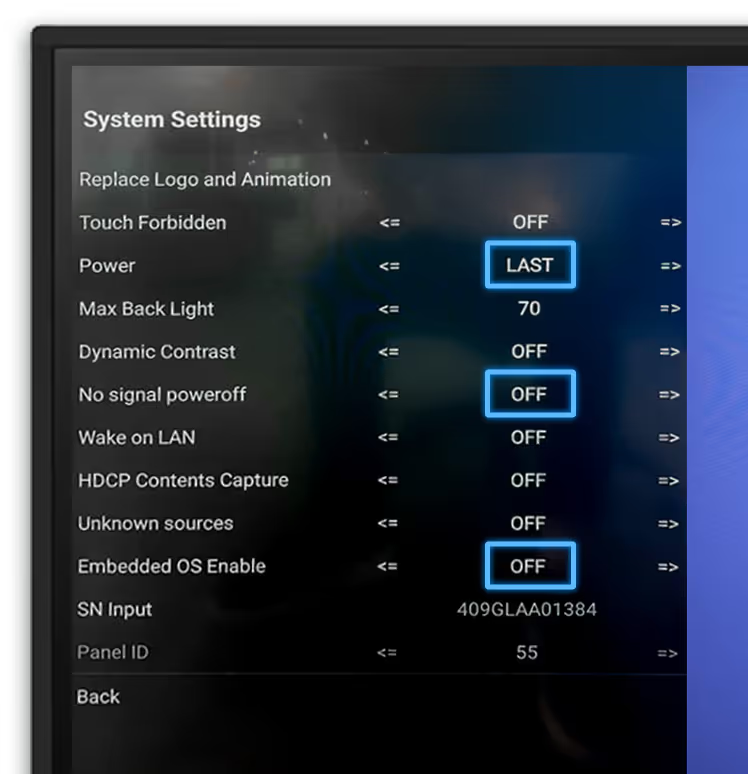
6. Go back and select System Settings
7. Turn Power to ‘Last’
8. Turn No signal poweroff to ‘OFF’
9. Turn Embedded OS Enable
STEP #4
Plug the Elo Backpack into HDM1 and TOUCH1 ports on the right side of the screen.
STEP #5
Complete Elo setup steps HERE