

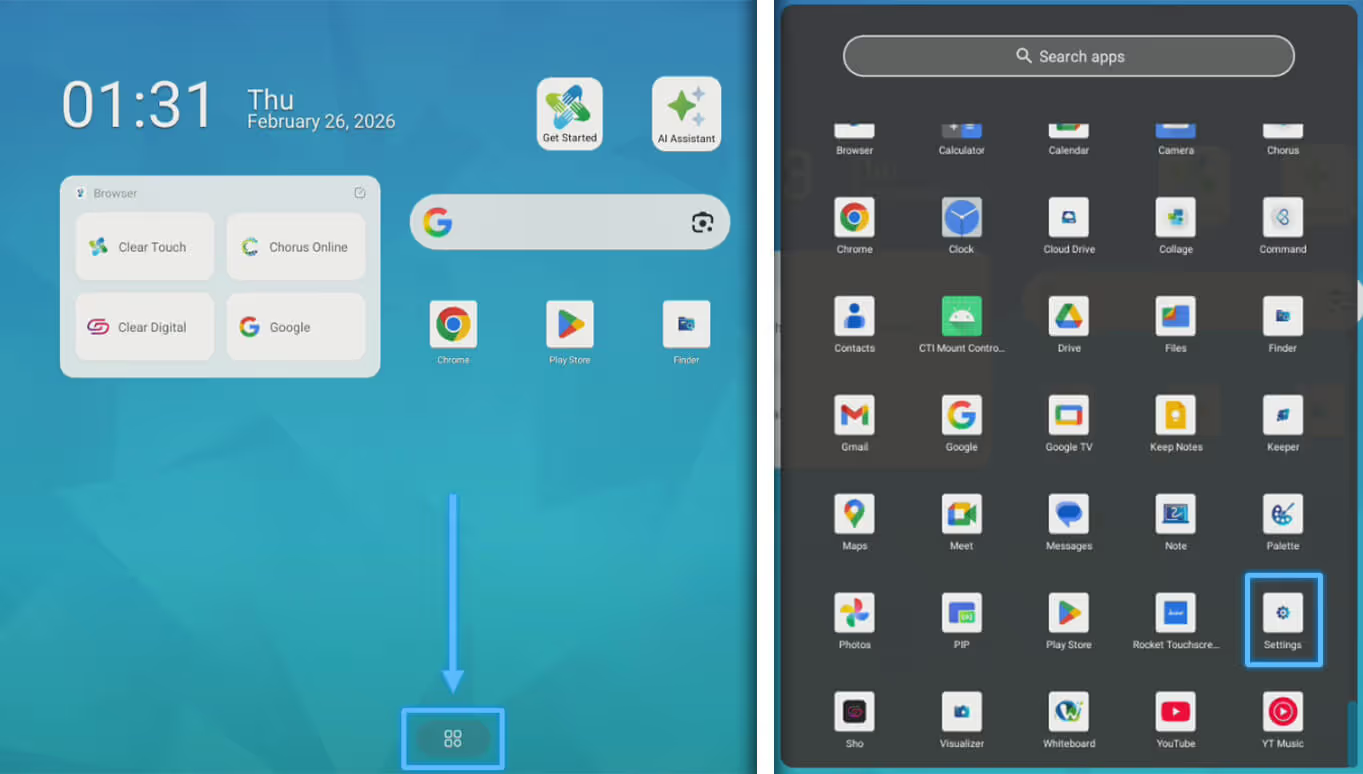
1. Select the app tray icon, locate and launch the Settings App
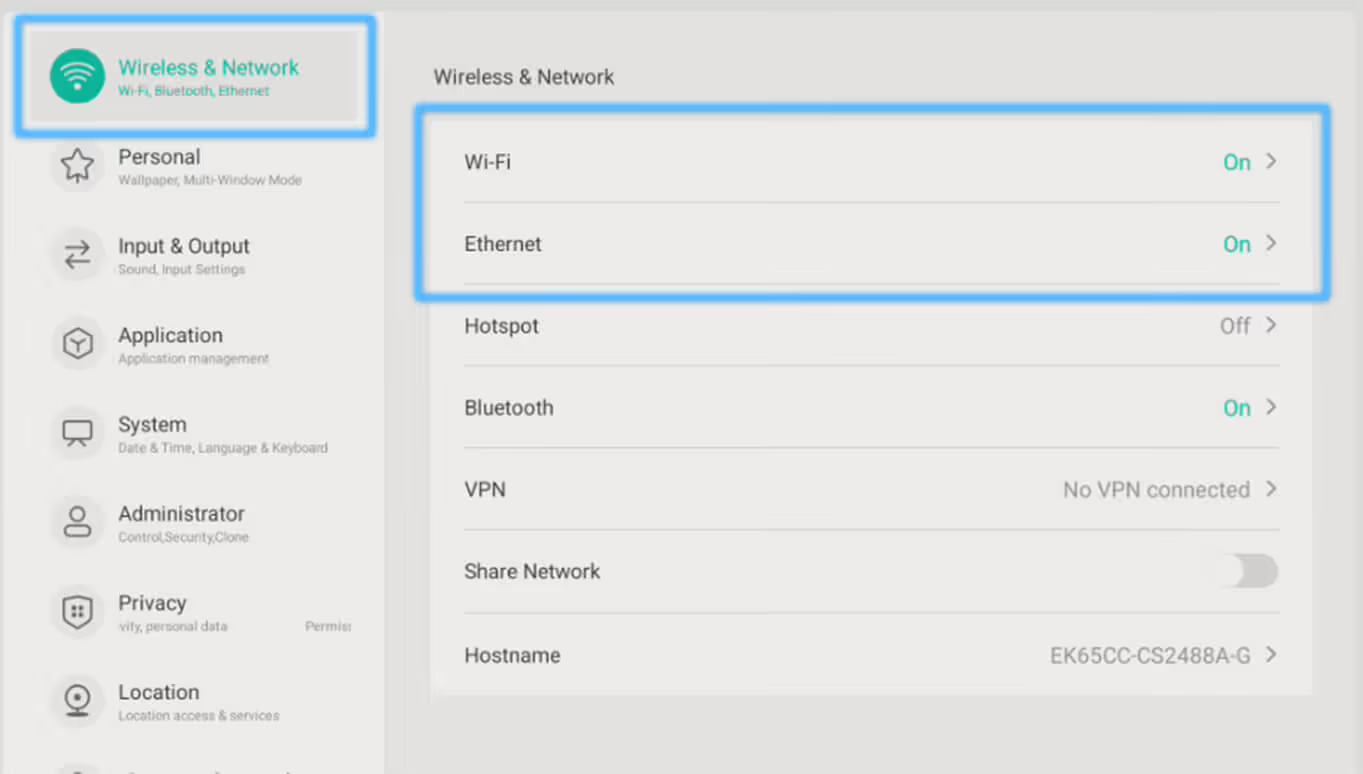
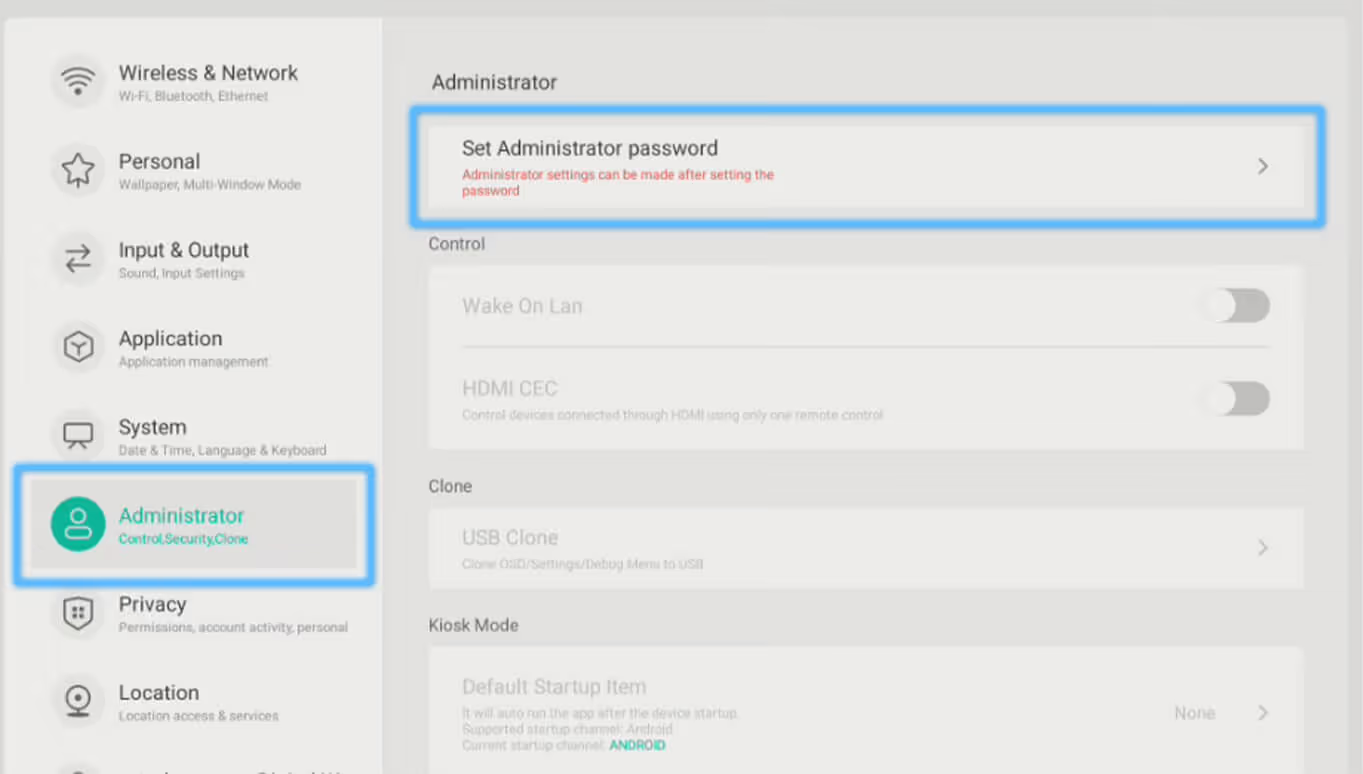
3. Select Administrator. Select “Set Administrator password”; set the password to 8000 (enter this twice)
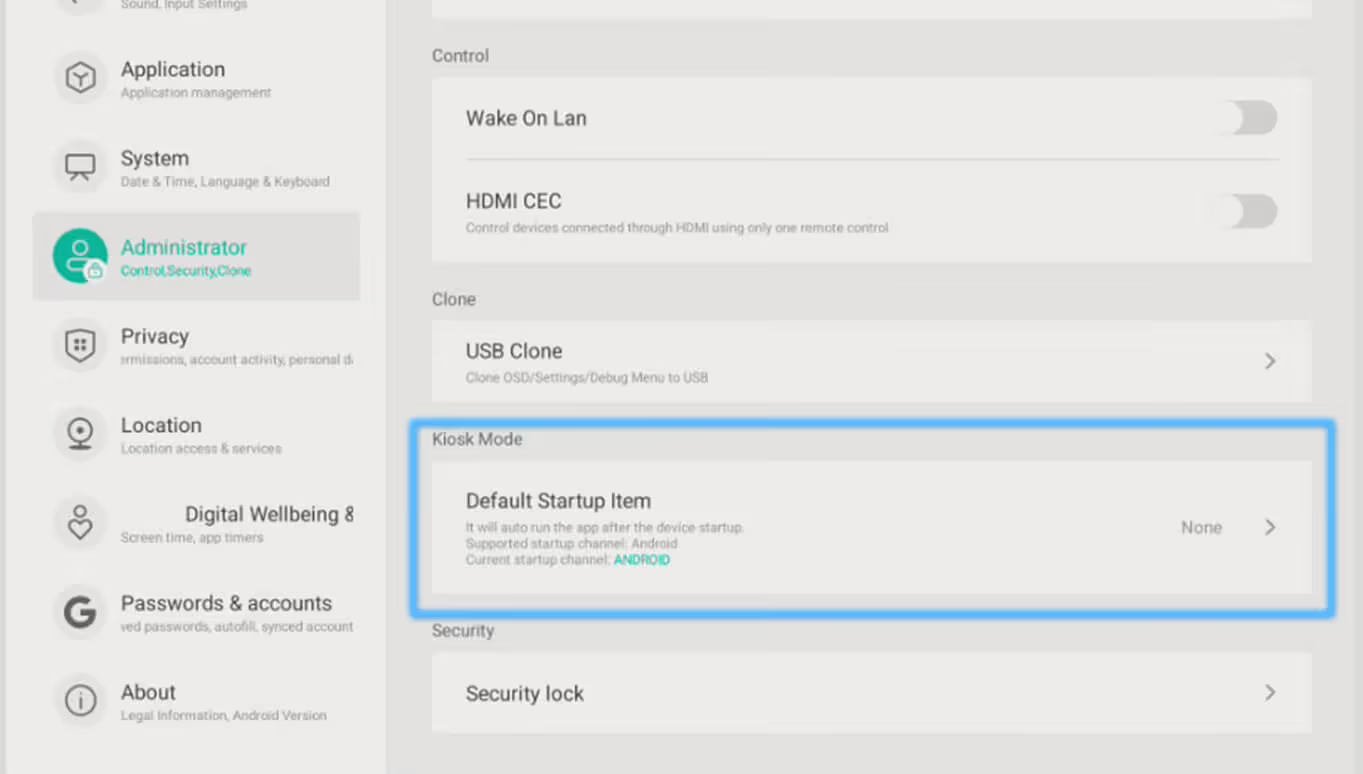
4. While in Administrator, tap the option for Default Startup Item
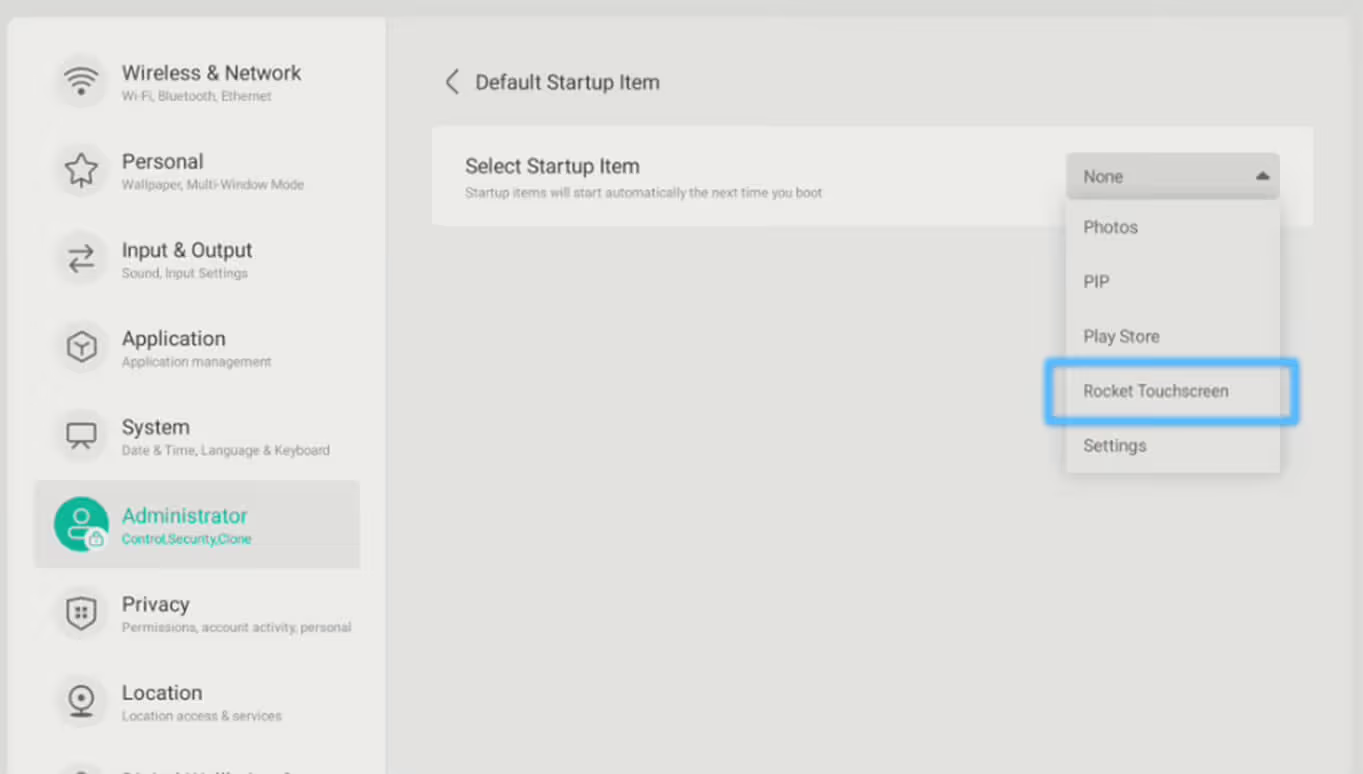
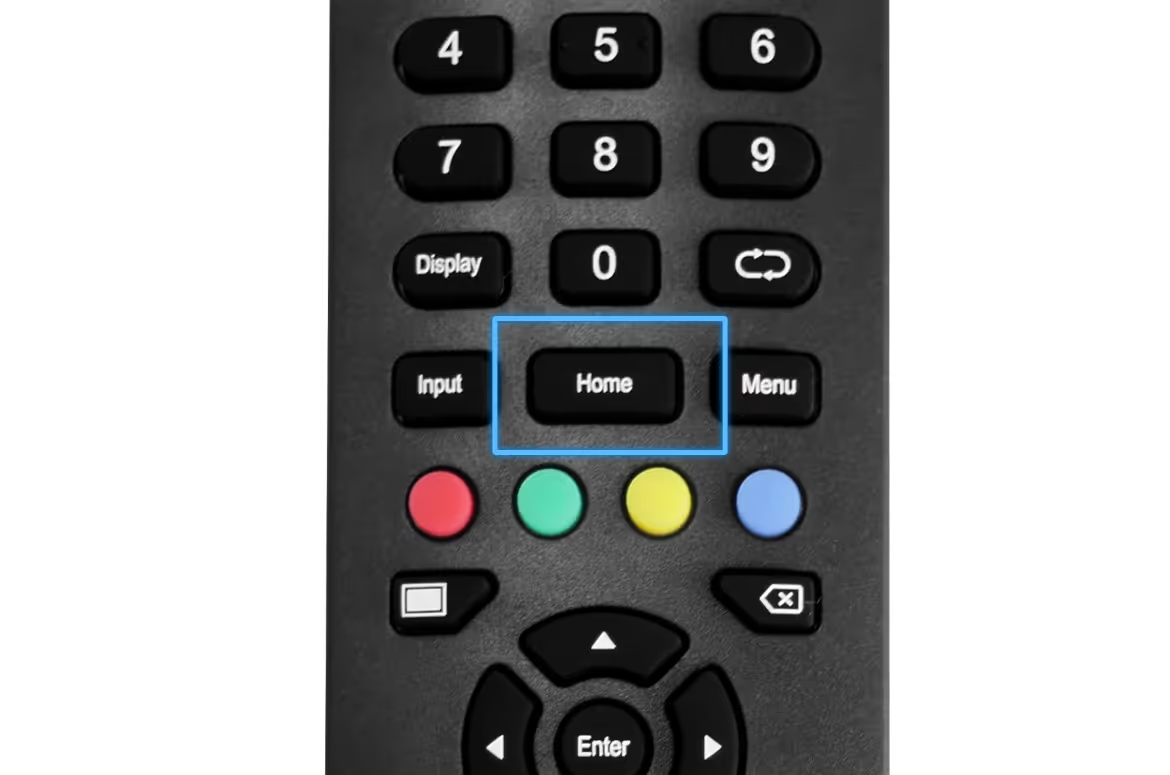
7. Open the App tray again and select Rocket Touchscreen to launch the application
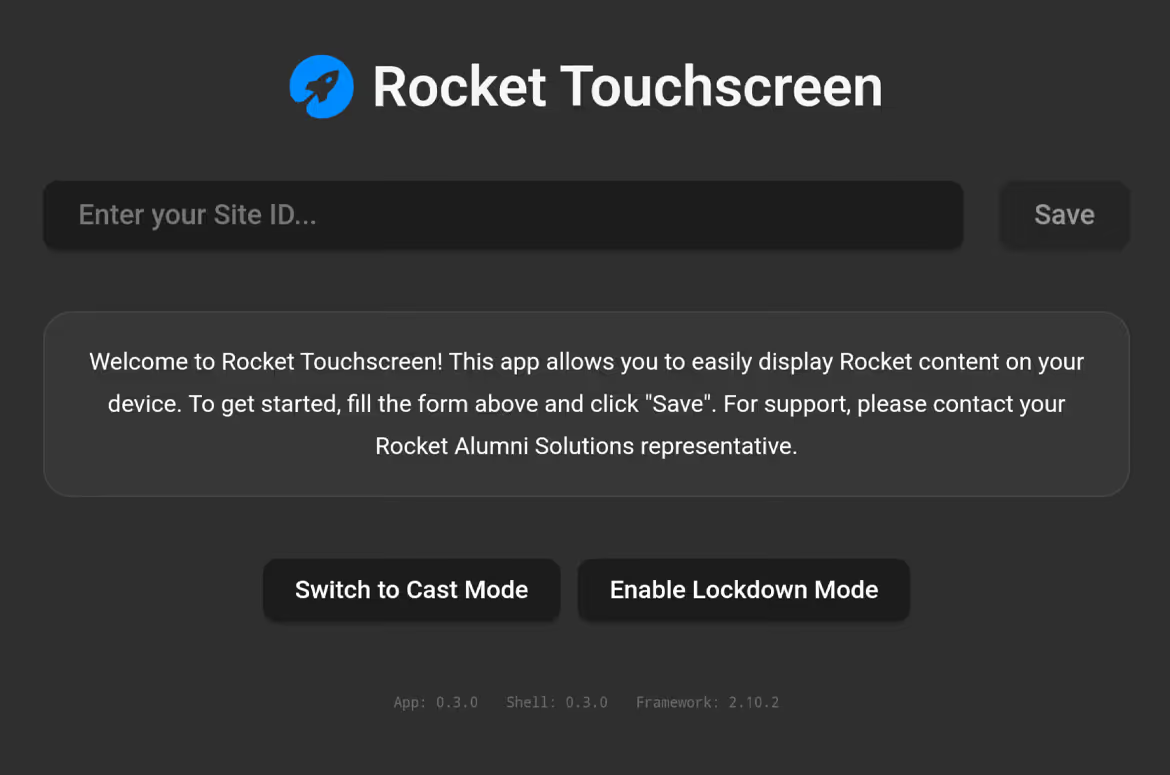
8. Enter your site ID. This is the alphanumeric string at the end of YOURexample, if your site URL is 6810c977bc0fa455f90d14fa2 then the ID would be 6810c977bc0fa455f90d14fa2
Please note: you do NOT
If you are unsure what your site ID / URL is, OR are only involved in the installation side of the project, please reach out to the project owner to ask for their Rocket site URL.
9. Setup complete. We hope you enjoy your Rocket Touchscreen experience!